You charged your laptop to 100% this morning. By lunch, it’s at 55%. You haven’t even opened YouTube.
Sound familiar?
Most people blame the obvious culprits — Chrome, screen brightness, too many tabs. But the real battery killers are hiding deeper inside your settings, quietly running in the background while you work, sleep, or carry your laptop across the room.
Here are five hidden settings draining your battery right now — and the exact steps to fix each one in under two minutes.
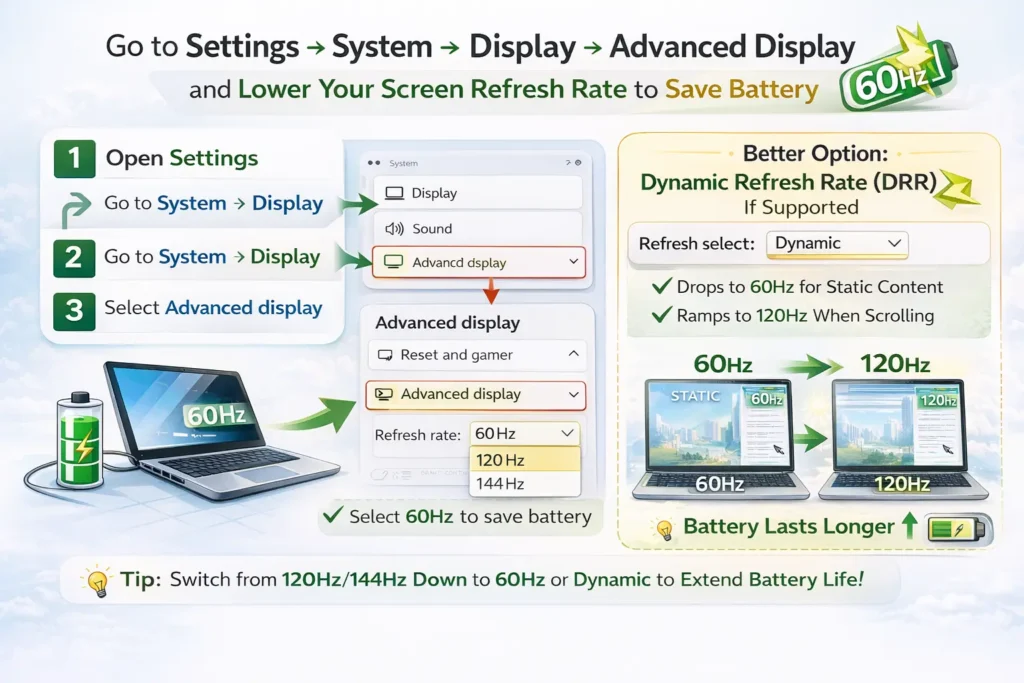
1. Your Display Is Refreshing 120 Times Per Second Even When You're Just Reading Emails
Modern laptops come with 120Hz or 144Hz screens. It feels premium, but here’s the problem: your GPU is working twice as hard as it needs to for everyday tasks like browsing, writing, or watching YouTube.
For most tasks, you simply cannot tell the difference between 60Hz and 120Hz. But your battery absolutely can.
How to fix it:
Go to Settings → System → Display → Advanced display and change your refresh rate from 120Hz/144Hz down to 60Hz.
Better option: If your laptop supports Dynamic Refresh Rate (DRR), select that instead. It automatically drops to 60Hz for static content and only ramps up when you’re scrolling. Best of both worlds.
2. Your Laptop Is Still Working While You Sleep (And So Is Your Battery)
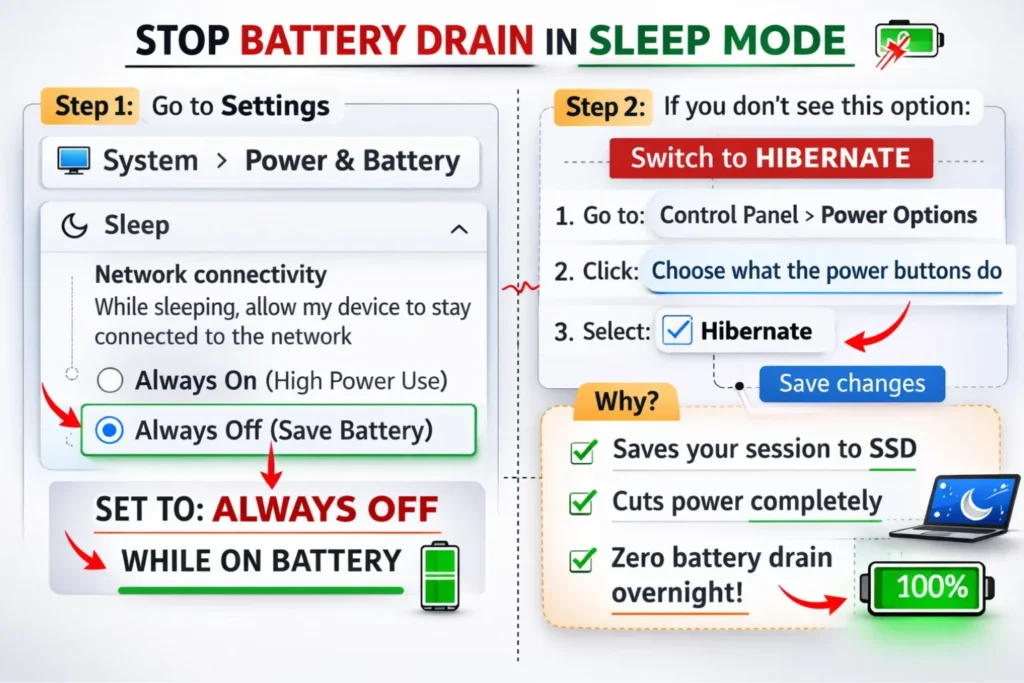
Close the lid. Walk away. Come back hours later to a hot laptop and 30% less battery. This isn’t a fluke — it’s a Windows feature called Modern Standby.
Modern Standby keeps your Wi-Fi alive while your laptop “sleeps” so it can fetch emails and sync updates in the background. Great for notifications. Terrible for your battery.
How to fix it:
Go to Settings → System → Power & battery and look for the “Network connectivity” option under Sleep settings. Set it to Always Off while on battery.
If you don’t see that option: Switch to Hibernate instead of Sleep. Hibernate saves your entire session to the SSD and cuts power completely — zero drain overnight, guaranteed.
3. Apps You Never Opened Today Have Been Running All Day
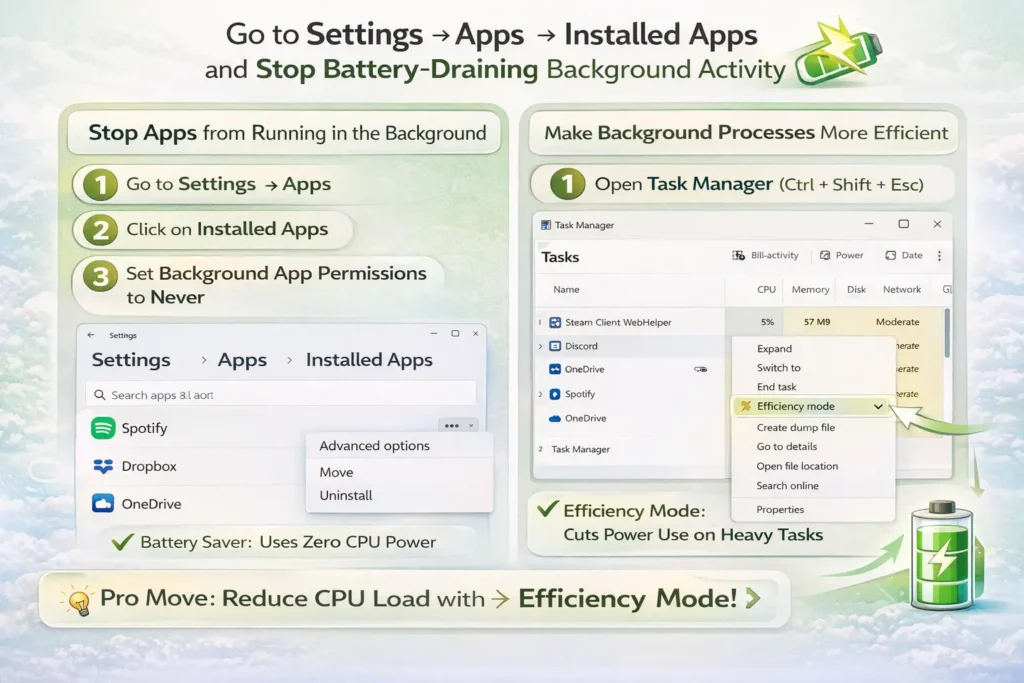
Spotify. Steam. The Weather app. The Xbox app. Even apps sitting dormant in your taskbar can silently “phone home” — checking for updates, syncing data, refreshing notifications — using real CPU cycles and real battery power every single hour.
How to fix it:
Go to Settings → Apps → Installed Apps, click the three dots next to any app, select Advanced options, and set Background app permissions to Never.
Pro move: Open Task Manager (Ctrl + Shift + Esc), right-click any power-hungry background process, and select Efficiency Mode. This forces it to run on the lowest-priority CPU cores — still functional, but barely touching your battery.
4. Windows Is Constantly Scanning Every File You Own
Every time you plug in and start working, Windows Search Indexer quietly spins up in the background — scanning your files, cataloging your documents, and updating its index so your searches feel instant.
The problem? If you have thousands of files (or large folders like game libraries or a cluttered Downloads folder), this process can loop endlessly, keeping your storage drive and CPU active for hours.
How to fix it:
Go to Settings → Privacy & security → Searching Windows and make sure “Respect power settings when indexing” is toggled ON. This one setting tells the indexer to pause the moment you unplug your charger.
For a bigger win: Scroll down and exclude heavy folders — like your Downloads folder, gaming directories, or any external drives — from the index entirely.
5. "Fast Startup" Is Quietly Breaking Your Power Management
Fast Startup sounds like a feature you’d want. It makes your laptop boot faster by saving a snapshot of the system kernel to your drive instead of fully shutting down.
The catch: your laptop never actually powers off. Over time, this “ghost state” causes driver processes to linger and behave inefficiently — and that translates into unexplained battery drain that gets worse the longer you use it.
How to fix it:
Go to Control Panel → Hardware and Sound → Power Options → Choose what the power buttons do.
Click “Change settings that are currently unavailable” and uncheck “Turn on fast startup.”
Your boot time might increase by a couple of seconds. But your system will start fresh every time — no lingering processes, no mystery drain.
Quick Reference: All 5 Fixes at a Glance
| Setting | Why It Drains Battery | The Fix |
|---|---|---|
| High Refresh Rate | GPU works overtime to maintain 120Hz visuals | Switch to 60Hz or Dynamic mode |
| Modern Standby | Syncs apps and data even with the lid closed | Disable network during sleep or use Hibernate |
| Background Apps | Constant CPU activity for notifications | Set background permissions to Never |
| Search Indexer | Continuous disk and CPU scanning | Enable “Respect power settings” |
| Fast Startup | Prevents a true full shutdown cycle | Disable in Control Panel > Power Options |
The Bottom Line
None of these fixes require any technical expertise or third-party software. They’re all buried in settings menus Microsoft doesn’t exactly advertise — but each one is quietly costing you battery life every single day.
Spend 10 minutes on these five changes, and most people gain back 1 to 2 extra hours of real-world battery life without losing any performance they’d actually notice.
Start with Modern Standby (#2) if your laptop ever runs warm inside your bag. That one alone can be a game-changer.