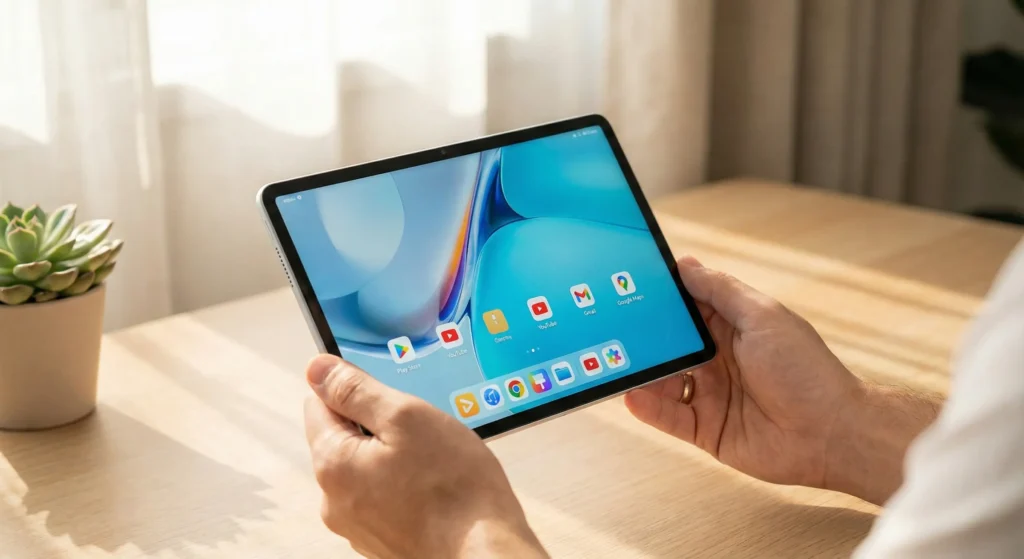
We tested the latest solutions on the new HarmonyOS 5.1 tablet. Here is the fastest, most reliable way to get YouTube, Maps, and Gmail running in minutes.
Putting it simply, the new Huawei MatePad 11.5 (2026) is phenomenal hardware for the price. The new 120Hz PaperMatte screen is a joy to use, and the upgraded 10,100mAh battery lasts literally forever.
But if you just unboxed one this holiday season, you’re facing the same problem that has plagued Huawei users for years: Where is the Google Play Store?
Despite it being 2026, US restrictions mean Huawei still cannot pre-install Google Mobile Services (GMS). This means no native YouTube app, no Google Drive, and no Google Maps out of the box.
The good news? The workaround has gotten much better.
Forget the complicated “hacking” methods of 2023 that broke with every update. We have tested the latest methods on the 2026 MatePad running HarmonyOS 5.1, and we found the definitive, working solution that takes less than 5 minutes to set up.
Here is how to get your essential Google apps back on your new tablet.
The 2026 Solution: Why We Recommend GBox
In late 2025 and moving into 2026, the most stable “set it and forget it” method for the average user is a virtualization sandbox called GBox.
Unlike older methods, GBox doesn’t require rooting your device or sketchy downloads from random websites. It is available directly through Huawei’s own AppGallery, which adds a layer of security trust.
Why GBox works best on the MatePad 11.5 (2026):
Optimized for HarmonyOS 5.1: It runs smoothly without crashing on the new OS.
Battery Efficient: It doesn’t drain the new 10,100mAh battery in the background.
Google Login Support: You can sign in with your actual Google account to sync YouTube history, contacts, and emails.
Step-by-Step Guide: Installing Google Apps
Follow these steps exactly, and you will have the Play Store running in minutes.
Step 1: Open Huawei AppGallery
Unlock your MatePad 11.5. Locate the red AppGallery icon on your home screen and open it.
Step 2: Search and Install "GBox"
In the search bar, type “GBox”. It should be the first result with a green icon. Tap Install.
Note: Because GBox needs to create a virtual environment to fool Google apps into thinking they are on a different phone, it will ask for several permissions. You must accept these for it to work.
Step 3: Launch GBox and Initialize
Once installed, open the GBox app. The first launch will take a moment as it initializes the necessary Google service frameworks in the background.
Step 4: Access the Play Store
Inside the GBox interface, you will see icons for popular apps like YouTube or Google Photos. Tap on any of them.
Crucial Step: Instead of launching that specific app, GBox will first open a sign-in screen for the Google Play Store. Sign in with your standard Gmail address and password.
Step 5: Install Your Apps
Once signed in, you now have a working Google Play Store interface inside GBox. You can now search for and install:
- YouTube
- Google Maps
- Gmail
- Google Drive
- Google Chrome
Step 6: Create Home Screen Shortcuts (The Final Polish)
Right now, your Google apps live inside the GBox app. To make them feel “native”:
- Go back to the main GBox screen.
- Press and hold on the YouTube icon (or any app you installed).
- Select “Add shortcut” or “Send to desktop”.
Now, the YouTube icon will appear on your main MatePad home screen, just like any other app.
Reality Check: What Works and What Doesn't in 2026?
While GBox is fantastic, it is not a 100% perfect replica of a native Google phone. It is important to manage your expectations.
What Works Perfectly:
- YouTube: 4K streaming, signing in, history, and subscriptions work flawlessly.
- Google Maps: Navigation and location sharing work.
- Productivity: Docs, Sheets, Drive, and Gmail sync perfectly.
- Social Media: Apps that rely on Google login (like some dating or social apps) usually work via GBox.
What Does NOT Work:
- Google Pay/Wallet: You cannot use your MatePad for NFC tap-to-pay contactless payments. Google’s security layer blocks this in virtual environments.
- Android Auto: You cannot connect the tablet to your car’s head unit.
- Deeply Integrated Games: Some games that rely heavily on Google Play Games for multiplayer saves may occasionally hiccup, though most run fine.
Final Verdict
The Huawei MatePad 11.5 (2026) is too good a piece of hardware to ignore just because of software restrictions.
Thanks to how mature GBox has become on HarmonyOS 5.1, the lack of native Google apps is no longer a dealbreaker; it’s merely a 5-minute inconvenience during setup. Once you have completed the steps above, you’ll likely forget you’re even using a workaround.