HyperOS 3.0 introduces several visual and background features designed to enhance system fluidity and ecosystem integration.
However, some default settings can increase background load, affect animation latency, or consume additional system resources.
For users prioritising responsiveness and sustained performance, disabling certain options can result in noticeably faster day-to-day operation, especially on mid-range and older hardware.
Below are five HyperOS 3.0 settings that can be turned off to improve system speed and consistency.
1. System Animations and Transition Effects
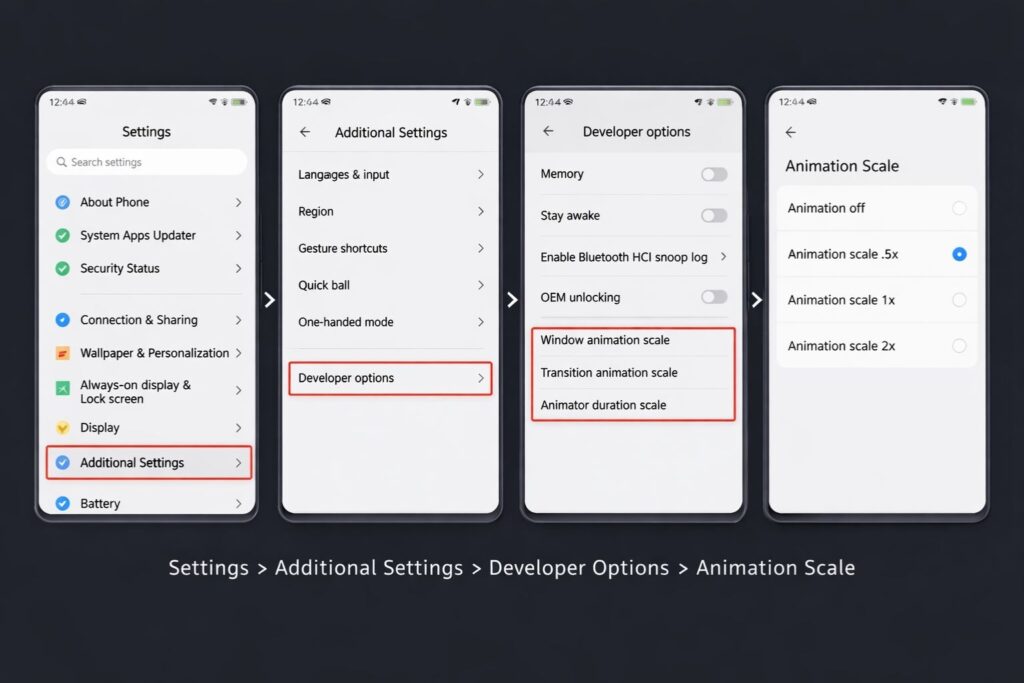
HyperOS 3.0 uses extended animations across app launches, gestures, and system transitions.
While visually polished, these effects add latency to user interactions.
Disabling or reducing animation scales in Developer Options lowers frame rendering time.
This results in faster app switching and quicker UI response without impacting core functionality.
Path: Settings → Additional Settings → Developer Options → Animation Scale
2. Background App Autostart
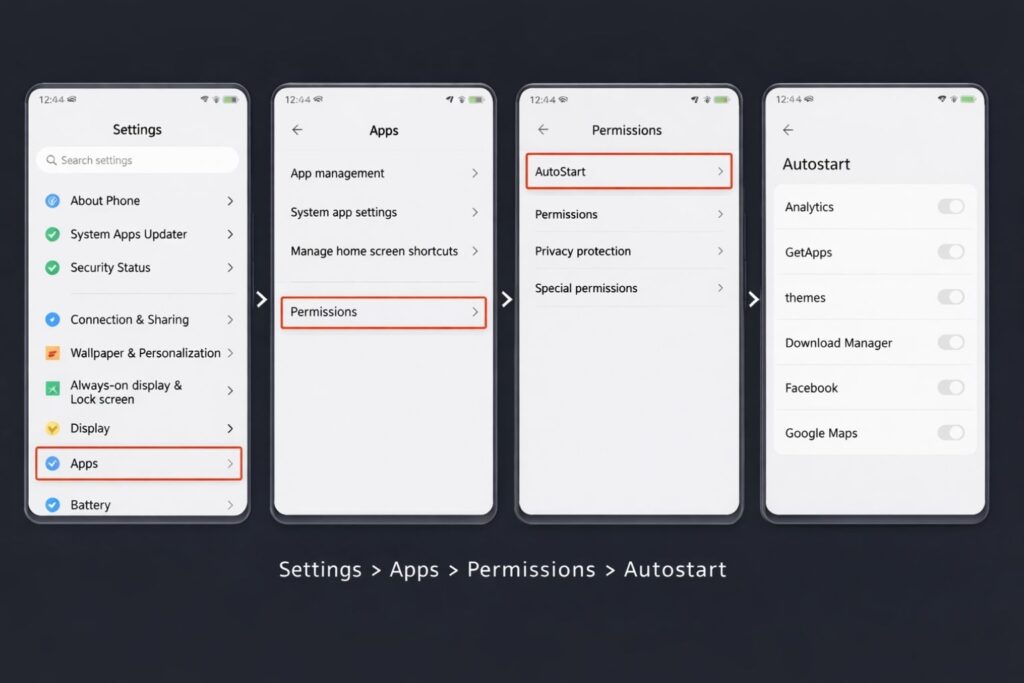
Many apps are allowed to restart automatically after reboot or in the background. This increases RAM usage and background CPU activity.
Restricting auto start access prevents unnecessary background processes. This helps maintain memory availability and reduces performance drops during multitasking.
Path: Settings → Apps → Permissions → Autostart
3. AI-Based App Preloading
HyperOS 3.0 includes predictive app loading based on usage patterns. On devices with limited RAM, this feature can increase memory pressure.
Disabling intelligent preloading ensures apps load only when manually opened. This improves system stability during extended usage sessions.
Path: Settings → Battery → Performance Settings → Smart App Management
4. Always-On System Services and Sync
Continuous cloud sync, device analytics, and ecosystem services run persistently in the background. These services consume network, CPU, and battery resources.
Turning off non-essential sync options reduces background activity. This results in smoother foreground performance and improved standby efficiency.
Path: Settings → Battery → Performance Settings → Smart App Management
5. Live Blur and Dynamic Visual Effects
HyperOS 3.0 applies real-time blur effects to the control centre, notifications, and multitasking view. These effects are GPU-intensive and can cause frame drops on certain chipsets.
Disabling live blur prioritises performance over visual depth. The interface remains functional while becoming more responsive.
Path: Settings → Display → Visual Effects → Disable Blur
Performance Impact and Limitations
Disabling these settings does not increase raw processing power. Instead, it reduces background workload and UI latency.
Performance gains are most noticeable on mid-range devices, older flagships, and phones with limited RAM. High-end models may see smaller but more consistent responsiveness improvements.
Final Notes
HyperOS 3.0 is designed to balance visuals, ecosystem features, and efficiency.
Advanced users can tailor performance by selectively disabling non-essential system options.
These adjustments are reversible and do not affect system stability or software updates.
Users focused on speed and reliability may benefit most from this configuration.
HyperOS 3.0 Turn Off These 5 Settings to Double Your Speed
Frequently Asked Questions (FAQ)
1. Will turning off these settings damage HyperOS 3.0 or cause instability?
No. These options are non-essential features. Disabling them does not affect system integrity, updates, or security functions.
2. Does disabling these settings actually double performance?
There is no increase in raw CPU or GPU power. The perceived speed improvement comes from reduced background load, lower UI latency, and faster app transitions.
3. Which devices benefit the most from these changes?
Mid-range phones, older flagships, and devices with 6–8GB RAM see the most noticeable improvements. Entry-level hardware may also gain better consistency.
4. Can these settings be re-enabled later?
Yes. All changes are fully reversible. Users can turn the settings back on at any time without data loss or system reset.
5. Will battery life improve after disabling these features?
In most cases, yes. Reduced background activity and lighter visual effects typically lower power consumption, especially during standby and multitasking.