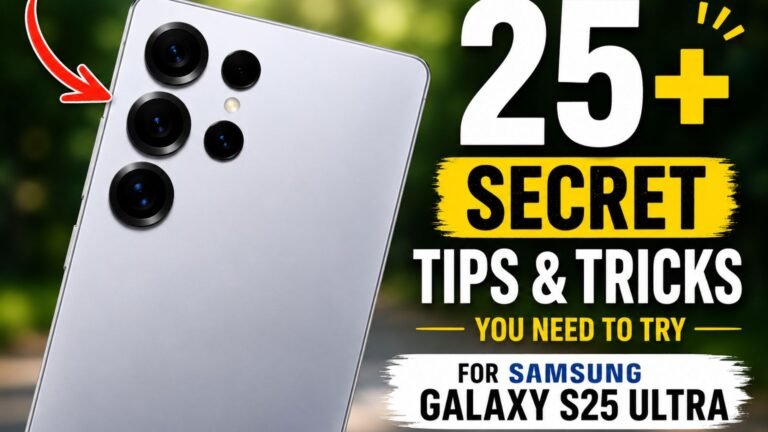
The Samsung Galaxy S25 Ultra is packed with powerful features, but many of its best tools are hidden inside One UI and Galaxy AI. While most users stick to the default settings, enabling a few lesser-known options can significantly improve battery life, productivity, photography, and multitasking.
In this guide, you’ll discover the best Samsung Galaxy S25 Ultra hidden features that are worth enabling today.
1. Use Now Brief for Daily AI Updates
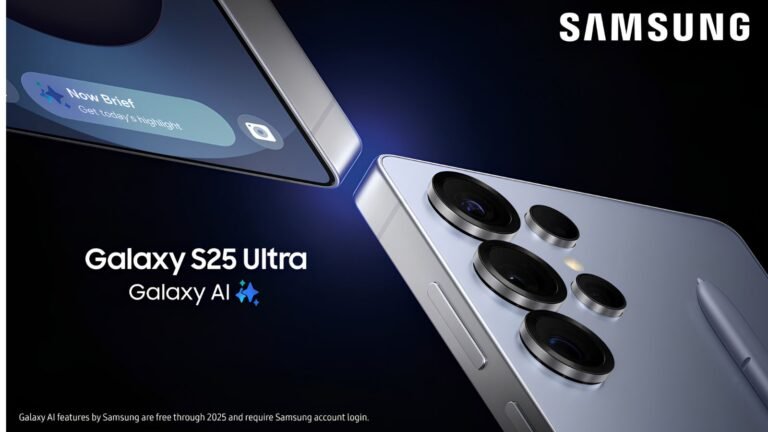
One of the smartest Galaxy AI features is Now Brief. It automatically shows your daily schedule, weather, reminders, and other useful information in one place, helping you stay organized without opening multiple apps.
Why You’ll Love It: Daily AI summaries, weather updates, and personalized recommendations.
How to enable it: Settings > Advanced features > Galaxy AI > Now Brief.
2. Remove Background Noise from Videos
Did you record a video with unwanted wind or traffic noise? The Audio Eraser feature uses AI to reduce or remove distracting sounds, making your videos sound much cleaner.
Perfect For: Travel videos, vlogs, and family recordings.
How to use it: Open a video in the Gallery > Edit > Audio > Audio Eraser.
3. Circle to Search Instantly
Instead of copying text or taking screenshots, simply circle anything on your screen to search it instantly using Google AI. You can look up products, images, landmarks, and text without leaving your current app.
How to use it: Long-press the home button (or navigation handle at the bottom of the screen), then circle the item you want to search.
4. Master the S Pen Air Commands
Most users only use the S Pen for writing, but it can act as a magic wand for your phone. You can use it as a remote camera shutter, presentation clicker, or to trigger quick screenshots.
How to customize it: Settings > Advanced features > S Pen > Air actions.
5. Enable Adaptive Battery Protection
The Galaxy S25 Ultra intelligently learns your charging habits and helps reduce battery aging by limiting unnecessary full charging overnight.
Benefits: Longer battery lifespan and better long-term performance.
How to enable it: Settings > Battery > Battery protection > Adaptive.
6. Unlock Advanced Camera Features
The 200MP camera offers more than just high-resolution photos. Explore hidden tools like Expert RAW, Nightography, and Portrait Studio to take professional-grade shots.
How to access it: Open the Camera app > swipe to More > select Expert RAW (you may need to download the module the first time).
7. Create Powerful Modes & Routines
Samsung’s Modes and Routines can automate everyday tasks, like turning on Wi-Fi when you get home or launching Spotify when your Bluetooth earbuds connect.
How to set it up: Settings > Modes and Routines.
8. Split Screen Like a Pro
The Galaxy S25 Ultra supports advanced multitasking, allowing you to run two apps simultaneously, drag and drop files, and open floating windows.
How to use it: Open your Recent Apps menu > tap an app’s icon at the top > select Open in split screen view.
9. Secure Your Private Apps
Use Secure Folder to protect sensitive apps, photos, documents, and files behind biometric authentication. This creates a completely separate encrypted space on your device.
How to enable it: Settings > Security and privacy > More security settings > Secure Folder.
10. Use Galaxy AI Writing Tools
Galaxy AI can help rewrite messages, improve grammar, summarize notes, and adjust the tone of your writing directly on the device.
How to use it: When typing on the Samsung Keyboard, tap the AI stars icon and select Chat Assist or Writing Assist.
11. Generate Custom AI Wallpapers
Never run out of wallpaper ideas. You can use Galaxy AI to generate completely unique, high-resolution backgrounds based on simple text prompts.
How to use it: Long-press the home screen > Wallpaper and style > Change wallpapers > Creative > Generative.
12. Translate Phone Calls in Real-Time
Live Translate acts as a personal interpreter during phone calls, translating both your voice and the caller’s voice in real-time, complete with live captions.
How to enable it: Open the Phone app > tap the three dots (Settings) > Live translate.
13. Pause USB Power Delivery for Gaming
Also known as “Battery Bypass,” this feature powers the phone directly from the charger rather than the battery while gaming, significantly reducing heat and protecting battery health.
How to enable it: Open Game Launcher > Game Booster settings > toggle on Pause USB Power Delivery.
14. Stack Your Widgets
Save precious home screen real estate by stacking multiple widgets of the same size on top of each other. You can then simply swipe through them.
How to use it: Long-press a widget on your home screen and tap Create stack.
15. Answer Calls with Text (Bixby Text Call)
If you are in a meeting and can’t speak, you can type a message, and Bixby will read it aloud to the caller in a natural voice. It also transcribes what the caller says on your screen.
How to enable it: Open the Phone app > Settings > Bixby text call.
16. Move and Erase Objects in Photos (Generative Edit)
Samsung’s AI photo editor allows you to tap on objects or people in the background of your photos to seamlessly erase or move them elsewhere.
How to use it: Open a photo in Gallery > tap the Edit (pencil) icon > tap the AI stars > circle what you want to move or erase.
17. Separate App Sound
Want to play Spotify music on your Bluetooth speaker but keep the sound effects of your mobile game playing only on your phone? Separate App Sound makes this possible.
How to enable it: Settings > Sounds and vibration > Separate app sound.
18. Double Tap to Wake and Sleep
You don’t always have to reach for the power button to check your phone. You can easily turn the screen on or off by double-tapping empty space.
How to enable it: Settings > Advanced features > Motions and gestures > Double tap to turn on/off screen.
19. Utilize Edge Panels
Edge panels give you a hidden sidebar containing your favorite apps, tools, contacts, or a smart select screenshot tool, accessible from any screen.
How to enable it: Settings > Display > Edge panels.
20. Unlock Your Phone with the S Pen
If your phone locks while you are using the S Pen, you can configure it so that simply clicking the S Pen button unlocks the device without needing your fingerprint or PIN.
How to enable it: Settings > Advanced features > S Pen > S Pen unlock.
21. Check Your Notification History
Did you accidentally swipe away an important notification before reading it? You can actually view a log of every notification you’ve received in the past 24 hours.
How to enable it: Settings > Notifications > Advanced settings > Notification history.
22. Add a Floating Camera Shutter
Struggling to reach the camera button while taking a one-handed selfie? You can add a secondary, floating shutter button that you can drag anywhere on the screen.
How to enable it: Open Camera > Settings > Shooting methods > Floating Shutter button.
23. Pin Apps in Memory
If there is a heavy app or game you want to keep running flawlessly in the background without the phone closing it to save RAM, you can lock it open.
How to use it: Open the Recent Apps screen > tap the app’s icon > select Keep open.
24. Let AI Organize Your Notes
Note Assist in the Samsung Notes app can instantly take your messy, unstructured thoughts and auto-format them with bullet points, bold headers, and easy-to-read summaries.
How to use it: Open Samsung Notes > tap the AI stars icon > choose Auto format or Summarize.
25. Go PC-Mode with Wireless Samsung DeX
Your S25 Ultra is practically a computer. With DeX, you can wirelessly cast a Windows-like desktop interface to any Miracast-compatible smart TV or monitor.
How to use it: Swipe down to open the Quick Panel > tap DeX > select your TV or monitor.
Final Thoughts
The Samsung Galaxy S25 Ultra offers far more than flagship hardware. Features like Galaxy AI, Audio Eraser, Now Brief, Circle to Search, Expert RAW, Secure Folder, Modes & Routines, and S Pen Air Commands can completely change how you use your phone every day.
If you’ve just bought the S25 Ultra—or have been using it for months—these hidden features are worth exploring to unlock its full potential.
Frequently Asked Questions
What is the best hidden feature on the Samsung Galaxy S25 Ultra?
Many users consider Now Brief, Circle to Search, and Audio Eraser among the most useful hidden features because they save time and improve everyday tasks.
Does the Samsung Galaxy S25 Ultra have AI features?
Yes. The phone includes Galaxy AI features such as writing assistance, AI photo editing, Now Brief, Gemini integration, and intelligent search tools.
Can I improve battery life using hidden settings?
Yes. Enabling Adaptive Battery Protection, optimizing background apps, and using Modes & Routines can help extend battery life over time.