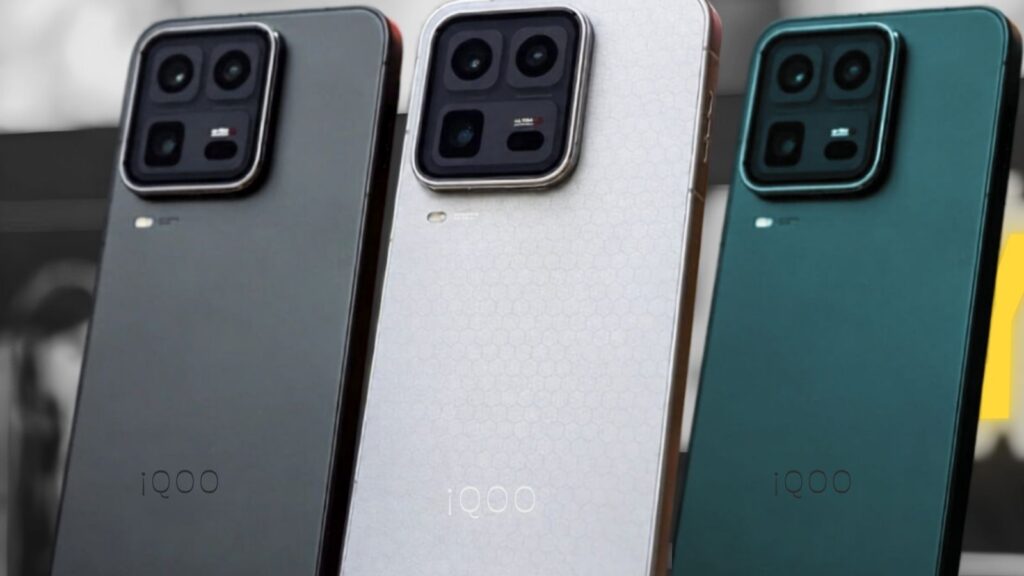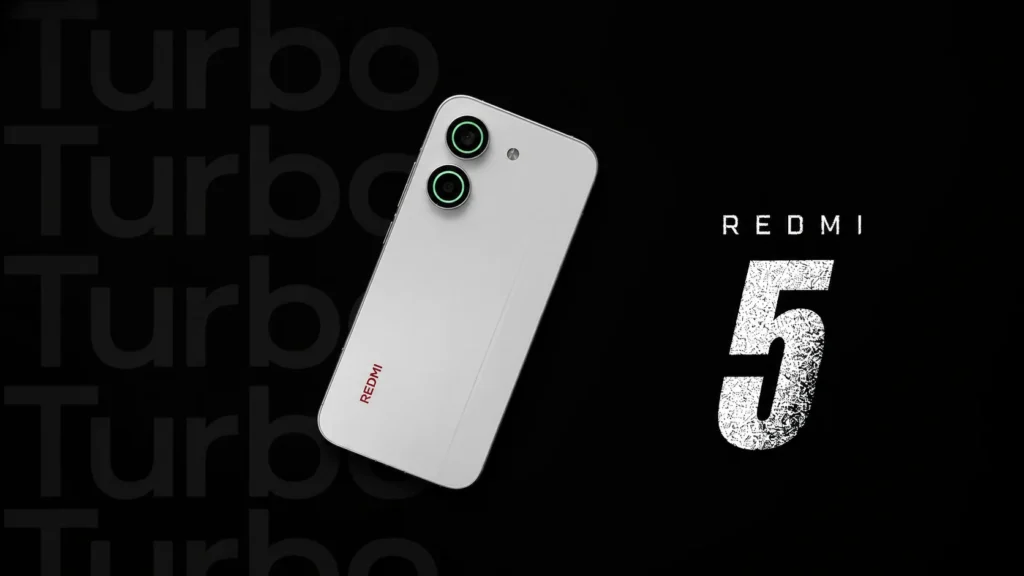
Just unboxed your new Redmi Turbo 5? With its beastly Dimensity 8500-Ultra chip, that massive 7540mAh battery, and the brand-new HyperOS 3, it’s an absolute powerhouse right out of the box.
But before you start pushing it to the limit, taking a few minutes to tweak the default system settings will drastically improve your day-to-day experience. Here are the first things you need to change.
1. Disable System Ads (Revoke MSA)
While HyperOS 3 is remarkably smooth and clean, you might still run into the occasional app “recommendation.” The absolute first thing you should do is cut off the system’s ad engine.
How to do it: Go to Settings > Passwords & security > Authorization & revocation. Toggle off the switch next to msa. Wait a few seconds for the timer to tick down, and tap Revoke.
2. Customize the RGB Camera Ring Lights
One of the standout design features of the Turbo 5 is the RGB ring lighting embedded inside the camera module.
Don’t leave it on the boring defaults! You can customize these lights to act as indicators for notifications, charging status, or even specific in-game effects.
How to do it: Open Settings > Additional Settings > Light effects to choose your preferred colors and dictate exactly when they light up.
3. Lock the Display to 120Hz
The Turbo 5 packs a gorgeous 6.59-inch 1.5K AMOLED screen with a 120Hz refresh rate, but out of the box, it often defaults to an “Auto” mode to save battery. Given that you have a gargantuan 7540mAh battery under the hood, battery anxiety is a thing of the past. Lock it to 120Hz so you get that silky-smooth performance 100% of the time.
How to do it: Navigate to Settings > Display and Brightness > Refresh rate. Change the setting from Default to Custom and select 120Hz.
4. Turn Off Memory Extension
Your phone already comes equipped with either 8GB or 12GB of blazing-fast LPDDR5X RAM. The “Memory Extension” feature uses your storage space as virtual RAM.
On lower-end phones, this helps, but on a flagship-tier processor like the Dimensity 8500-Ultra, virtual RAM is slower than physical RAM and can actually cause micro-stutters in heavy games.
How to do it: Go to Settings > Additional Settings > Memory extension and toggle it Off.
5. Enable Anti-Flicker (Eye Protection)
Because this display is capable of hitting a blinding 3500 nits of peak brightness, using it at night can strain your eyes.
Enabling the 3840Hz PWM dimming ensures your eyes stay comfortable in low-light environments without compromising color accuracy.
How to do it: Go to Settings > Display and Brightness and look for Anti-flicker mode or Eye Care, then toggle it on.