If your Samsung Galaxy is acting sluggish, apps are misbehaving, or Samsung Wallet features suddenly stop working, an outdated Google Play System might be the culprit.
While these updates are designed to happen automatically in the background, they can sometimes get stuck. When that happens, your phone misses out on critical security patches and core Android features.
Here is exactly how to manually force a Google Play System update on your Samsung Galaxy, along with the hidden steps you need to take if the standard update screen isn’t working.
Step 1: Force the Standard System Update
Your first stop should be the built-in update trigger hidden in your phone’s settings.
Open the Settings app.
Scroll down and tap Security and privacy (or go to About phone > Software information on older models).
Tap Updates.
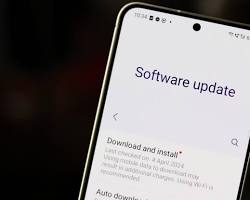
Tap Google Play system update.
Your phone will immediately ping Google’s servers. If an update is waiting, tap Download and install, then hit Restart now when it finishes.
Step 2: Force Updates for Hidden Google Components
As of mid-2026, Samsung users have noticed that certain core Google system components—specifically Android System SafetyCore, Android System WebView, and Google Play Services—sometimes stop updating automatically and do not show up in the Play Store’s standard “Update All” list.
If your Play System update seems stuck on an older month, you need to force-update these components directly from their hidden app listings.
For SafetyCore and WebView:
Go to Settings > Apps.
Search for “Android System SafetyCore” and tap it.
Scroll down and tap App details in store.
Tap Update if the button appears. (If it says “Open” or “Remove updates,” you are already current).
Repeat this exact process for “Android System WebView”.
For Google Play Services:
Go to Settings > Google > All services.
Tap System services, then tap Google Play Services.
Tap App details in store and press Update if available.
Troubleshooting: What if the update is completely stuck?
If you tap “Google Play system update” and the loading circle spins forever, or the download gets stuck halfway, the background updater has likely glitched.
Here is how to force it back to life:
Clear the Play Services Cache: Go to Settings > Apps > Google Play Services > Storage. Tap Clear cache (do not clear data). Restart your phone and try the update again.
Check your storage and connection: Background system updates will silently pause if your phone’s storage is nearly full or if you are on an unstable cellular connection. Connect to Wi-Fi, clear out some large files, and try again.
Leave it plugged in overnight: If all else fails, Google Play System updates are programmed to install when the device is idle, charging, and connected to Wi-Fi. Plug it in before bed, and the stuck update will often resolve itself by morning.