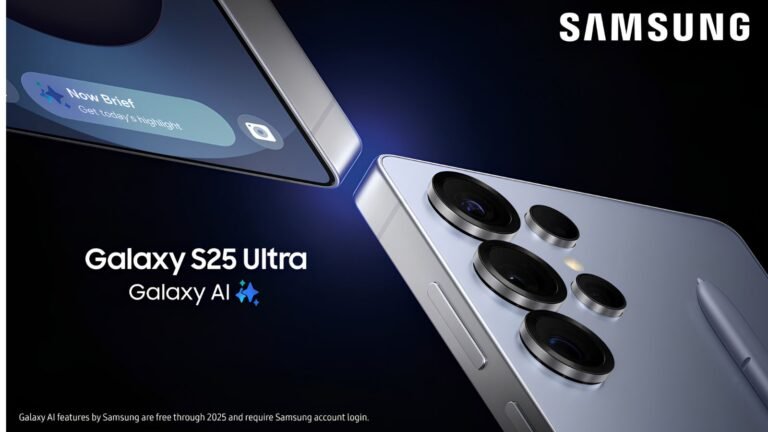
The Samsung Galaxy S25 Ultra delivers excellent battery life thanks to its powerful processor and intelligent battery optimization. However, some users may notice their battery draining faster than expected, especially after a software update, installing new apps, or changing device settings.
The good news is that you don’t need to replace your battery. In most cases, a few simple adjustments can significantly improve battery performance.
In this guide, we’ll cover 15 proven Samsung Galaxy S25 Ultra battery drain fixes that can help you get more screen time and keep your phone running efficiently.
Why Is Your Samsung Galaxy S25 Ultra Battery Draining Fast?
Battery drain can happen for several reasons, including:
High screen brightness
Apps running in the background
Poor mobile network signal
Always-On Display
GPS and Bluetooth constantly enabled
Software bugs after updates
High refresh rate usage
Battery-intensive apps
Fortunately, most of these issues are easy to fix.
15 Proven Samsung Galaxy S25 Ultra Battery Drain Fixes
1. Restart Your Phone
A simple restart clears temporary system processes and fixes minor software glitches that may be draining your battery.
How to do it: Press and hold the Power button > Tap Restart > Wait for the device to reboot.
2. Update to the Latest Software
Samsung regularly releases updates that improve battery optimization and fix software bugs. Install any available updates before trying other fixes.
How to do it: Go to Settings > Software Update > Download and Install.
3. Reduce Screen Brightness
The display is the biggest battery consumer on any smartphone. For better battery life, enable Adaptive Brightness, keep brightness below 50% indoors, and use Dark Mode whenever possible.
How to do it: Swipe down from the top of the screen to adjust the brightness slider, or go to Settings > Display > toggle on Adaptive brightness.
4. Enable Battery Saver Mode
Samsung’s Power Saving Mode reduces background activity without affecting everyday use. This can noticeably extend battery life during busy days.
How to do it: Go to Settings > Battery > Power Saving.
5. Check Battery Usage
Some apps consume more battery than others. If an app is using excessive power, update it, restrict background activity, or uninstall it if you don’t need it.
How to do it: Go to Settings > Battery > Battery Usage.
6. Put Unused Apps to Sleep
Samsung automatically manages inactive apps. You can manually improve battery life by placing rarely used apps into Sleeping Apps or Deep Sleeping Apps. This prevents unnecessary background activity.
How to do it: Go to Settings > Battery > Background usage limits > Deep sleeping apps.
7. Turn Off Always-On Display
Always-On Display is useful but constantly uses power. If battery life is your priority, turn it off or schedule it for specific hours.
How to do it: Go to Settings > Lock Screen and AOD > Always On Display.
8. Disable Unused Connectivity Features
Leaving Wi-Fi, Bluetooth, GPS, NFC, or Mobile Hotspot enabled all day increases battery consumption. Turn off features you’re not actively using from the Quick Settings panel (swipe down from the top of your screen).
9. Use Adaptive Refresh Rate
The Galaxy S25 Ultra supports a smooth 120Hz display. While it improves scrolling, it also uses more battery. Using Samsung’s adaptive refresh rate allows the phone to automatically lower the refresh rate when high performance isn’t needed.
How to do it: Go to Settings > Display > Motion smoothness > select Adaptive.
10. Enable Dark Mode
Dark Mode reduces power consumption, especially on Samsung’s AMOLED display. Besides saving battery, it also makes nighttime viewing more comfortable.
How to do it: Go to Settings > Display > select Dark.
11. Limit Background Activity
Apps syncing data continuously can shorten battery life. Restrict background usage for apps that don’t need constant updates. This is especially useful for shopping, gaming, and social media apps.
How to do it: Go to Settings > Apps > select the app > tap Battery > select Restricted.
12. Disable Nearby Device Scanning
Nearby device scanning constantly searches for compatible devices like headphones and smartwatches. If you rarely use this feature, turning it off can reduce unnecessary battery drain.
How to do it: Go to Settings > Connections > More connection settings > toggle off Nearby device scanning.
13. Improve Network Signal
A weak mobile signal forces your phone to work harder to maintain a connection. If you’re in an area with poor reception, use Wi-Fi whenever available or enable Airplane Mode if you temporarily don’t need network access.
14. Clear Cache After Major Updates
After installing a major One UI update, temporary cache files may conflict and affect battery performance. Clearing the system cache can restore normal battery efficiency without deleting your personal data.
How to do it:
Turn your phone completely off.
Plug it into a computer or console using a USB-C cable.
Press and hold the Volume Up + Power button simultaneously until the Samsung logo appears.
Use the volume keys to navigate down to Wipe cache partition and press the Power button to select it.
Select Yes, then once it finishes, select Reboot system now.
15. Reset Settings (Last Resort)
If none of the above fixes work, resetting system settings may solve hidden configuration issues. This won’t erase your photos, apps, or files but will restore system settings (like Wi-Fi passwords and Bluetooth pairings) to their defaults.
How to do it: Go to Settings > General Management > Reset > Reset All Settings.
Quick Battery-Saving Tips
Use these habits to maximize battery life every day:
| Tip | Benefit |
| Enable Adaptive Brightness | Lowers screen power consumption dynamically |
| Use Dark Mode | Saves battery on the AMOLED display |
| Keep apps updated | Fixes battery-related app bugs |
| Remove unused apps | Reduces silent background activity |
| Disable unnecessary features | Prevents continuous power usage |
| Charge with certified accessories | Protects long-term battery health |
Final Thoughts
If your Samsung Galaxy S25 Ultra battery is draining quickly, there’s usually no need to worry. Most battery issues are caused by software settings, background apps, or recent updates—not by a faulty battery.
Start with the simple fixes like updating your phone, checking battery usage, enabling Power Saving Mode, and reducing unnecessary background activity. In many cases, these changes can noticeably improve battery life without affecting your daily experience.
By following these 15 proven Samsung Galaxy S25 Ultra battery drain fixes, you can enjoy longer screen time, better performance, and a more reliable smartphone throughout the day.
Frequently Asked Questions
How do I stop my Samsung Galaxy S25 Ultra battery from draining fast?
Update your phone, reduce screen brightness, enable Power Saving Mode, check battery usage, and limit background apps. These are the most effective ways to improve battery life.
Does Dark Mode improve battery life?
Yes. Because the Galaxy S25 Ultra uses an AMOLED display, Dark Mode can reduce power consumption, especially when used across the system and supported apps.
Why is my battery draining after a software update?
After a major One UI update, your phone may spend a few days optimizing apps and indexing files in the background. Battery life often returns to normal after this process. If it doesn’t, clearing the cache partition and checking your battery usage can help.