IMDAD

7 Hidden Features on the Nothing Phone (4b) You Need to Try Right Now
Nothing Phone (4b)

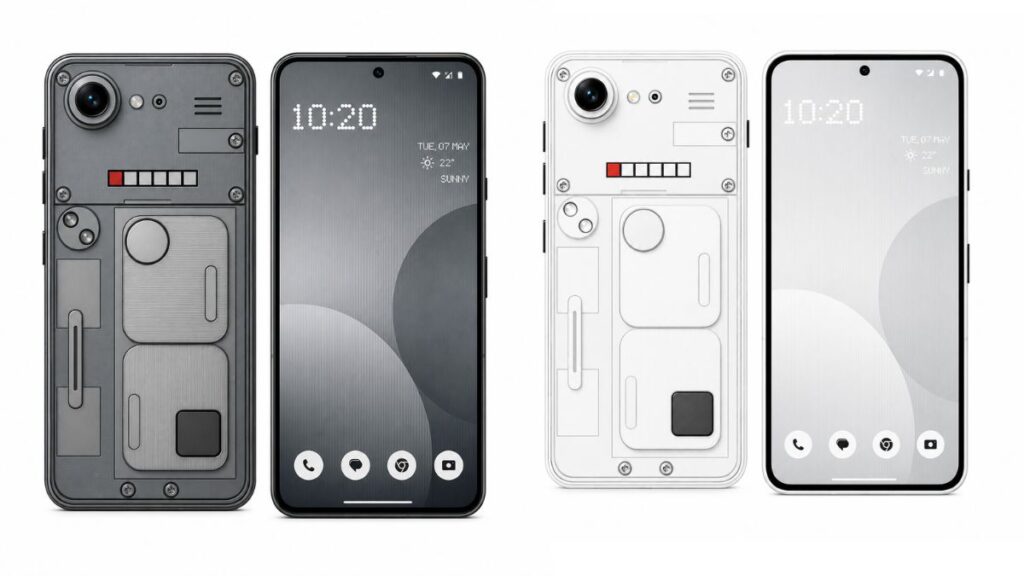
The Nothing Phone (4b) is officially here, and between its striking transparent design and the massive 5,400 mAh battery, it is a hardware beast for the price. But the real magic of this device lies in Nothing OS 4.1. While the interface is praised for being clean and bloatware-free, it is actually packed with hidden tools, shortcuts, and customizations that most people never find. If you just unboxed your Phone (4b) or are waiting for yours to arrive, stop using it like a basic Android. Here are 7 hidden features you need to enable right now to unlock the full potential of your new phone. 1. Instant ChatGPT from Anywhere Nothing OS 4.1 brings incredibly deep AI integration, but it is tucked away where you might miss it. You do not need to switch apps to use ChatGPT anymore. Whenever you take a screenshot or copy text, look for a small Eye Icon on the preview popup. Tapping this sends whatever is on your screen directly to ChatGPT. Need to translate an email, summarize a long article, or solve a math problem from a photo? It is just one tap away. 2. The Secret “Pop-Up View” Multitasking Multitasking on a 6.77-inch screen should be easy, but the standard split-screen can feel clunky. Nothing OS hides a much better way to run multiple apps. Open your recent apps menu (swipe up and hold), and tap the app icon at the top of the app card. You will see an option for Pop-Up View. This turns the app into a floating window that you can resize, move around, or temporarily minimize into an icon on the edge of your screen while you use another app. 3. Lock Apps Directly in the Task Switcher Ever hand your phone to a friend to show them a photo, only for them to start swiping through your gallery or opening your messages? You can lock an app to the screen so they cannot exit it. Go to the recent apps menu, tap the app icon at the top, and select Pin App. They can use that specific app, but they cannot go to your home screen or open anything else without your fingerprint or PIN. (Note: You may need to enable App Pinning in Settings > Security & Privacy first). 4. The Glyph Torch Shortcut The Glyph interface on the back of the Phone (4b) isn’t just for notifications; it can be used as a super-bright, diffused flashlight that is much better for finding things in the dark than the harsh LED flash. To activate it instantly, pull down your Quick Settings panel, long-press the Flashlight toggle, and select the Glyph lights. It provides a soft, wide-area illumination that is surprisingly useful. 5. Enable the “Smart App Drawer” If you are tired of hunting through a massive alphabetical list of apps, Nothing OS 4.1 has an AI-powered solution. Open your app drawer, tap the three-dot menu in the search bar, and turn on the Smart App Drawer. This feature automatically categorizes your apps into logical folders (like Social, Games, Productivity) and learns which apps you use most at certain times of the day, keeping them at the very top. 6. Maximize Battery with the “Extra Dark” Mode The Phone (4b)’s AMOLED screen is incredibly bright, which is great for outdoors but terrible for your retinas at 2 AM. It also drains that 5,400 mAh battery faster. Go into your Quick Settings panel, tap the edit pencil icon, and drag the Extra Dark toggle into your active tiles. This pushes the screen brightness below the normal minimum hardware limit, saving battery and saving your eyes when reading in bed. 7. The “Swipe Down for Notifications” Gesture By default, you have to reach all the way to the top of that tall 6.77-inch screen to check your notifications, which is nearly impossible with one hand. Change this immediately: Long-press on an empty space on your home screen > Home Settings > Gestures > enable “Swipe down for notifications.” Now, you can swipe down anywhere on the bottom half of your home screen to instantly pull down your notification shade. Bonus Tip: If you want to make your home screen look even cleaner, you can hide app icons you rarely use. Just swipe left in your app drawer to access the hidden apps vault! Also read: 5 Reasons to Buy the Nothing Phone (4b), And 2 Reasons to Skip It Also read: Nothing Phone (4b) Update Policy: What to Expect from Nothing OS

7 Hidden Features on the Nothing Phone (4b) You Need to Try Right Now Read More »
5 Reasons to Buy the Nothing Phone (4b), And 2 Reasons to Skip It

Nothing Phone (4b)

The Nothing Phone (4b) has officially arrived, bringing the company’s iconic transparent design and clean software to a much more aggressive mid-range price point. With a brand-new unibody look and upgraded internals, it is already generating massive hype. But does it actually live up to the expectations? If you are deciding whether to hit that pre-order button or hold onto your cash, here is the honest, no-nonsense breakdown. 5 Reasons to Buy the Nothing Phone (4b) 1. The Cleanest Software Experience In a market flooded with heavy user interfaces and pre-installed bloatware, the Phone (4b) is a breath of fresh air. It ships with Nothing OS 4.1 (based on Android 16), offering a smooth, minimalist, and deeply customizable experience. Plus, Nothing’s proven track record of 3 years of major OS updates means your phone will stay relevant for years. 2. A Massive 5,400 mAh Battery Nothing has packed an absolute unit of a battery into this device. Combined with the power efficiency of its new chipset, the Phone (4b) is a legitimate two-day smartphone for light users, and it will easily survive a full day of heavy gaming, GPS navigation, and continuous social media scrolling without breaking a sweat. 3. Snapdragon Reliability Stepping away from MediaTek for this model, the Phone (4b) is powered by the Qualcomm Snapdragon 6 Gen 4. While it is not designed to break benchmark records, this highly efficient 4nm processor excels at stable, sustained performance and snappy everyday multitasking without overheating. 4. Gorgeous 120Hz AMOLED Display You do not have to compromise on the screen. The 6.77-inch FHD+ AMOLED panel features an adaptive 120Hz refresh rate. Colors are vibrant, blacks are deep, and scrolling through your Discover feed or playing games feels incredibly fluid. 5. That Signature Glyph Design Why settle for a boring plastic slab? The Phone (4b) retains the head-turning aesthetic Nothing is famous for. With its redesigned transparent back panel and customizable Glyph Bar lighting for notifications and timers, it looks and feels like a much more expensive flagship. 2 Reasons to Skip It 1. The 33W Charging is Outdated Here is the major trade-off for that massive 5,400 mAh battery: it takes a long time to fill up. The Phone (4b) is capped at 33W wired charging. With competitors in this exact price bracket offering 67W or even 120W rapid charging in 2026, 33W feels painfully slow when you need a quick top-up before heading out. 2. No Dedicated Telephoto Lens The dual-camera setup features a very capable 50MP main sensor with OIS, paired with a basic 8MP ultra-wide lens. However, if you love taking zoomed-in portraits or concert photos, you will be disappointed. There is no optical zoom, meaning anything past 2x relies entirely on digital cropping, which quickly degrades image quality. Verdict The Nothing Phone (4b) is an absolute steal if you prioritize battery life, everyday performance, and a bloat-free Android experience wrapped in a stunning design. However, if you are a heavy photographer who needs optical zoom, or someone who relies on blazing-fast charging speeds, you might want to look at other options in the mid-range segment. Also read: Nothing Phone (4b) Update Policy: What to Expect from Nothing OS Also read: 7 Hidden Features on the Nothing Phone (4b) You Need to Try Right Now

5 Reasons to Buy the Nothing Phone (4b), And 2 Reasons to Skip It Read More »

Nothing Phone (4b) Update Policy: What to Expect from Nothing OS

Nothing Phone (4b)

Nothing’s first-ever b-series smartphone, the Phone (4b), has officially arrived today. While the fresh design and the Snapdragon 6 Gen 4 chip are grabbing the headlines, there is one crucial detail every savvy buyer needs to verify before hitting pre-order: the software update policy. Here is exactly what you can expect from the Nothing Phone (4b)’s software lifecycle and why it actually matters. The Software Promise Nothing Phone design and OS interface. Source: GameLoot Nothing has established a consistent standard for its mid-range smartphones. Out of the box, the Phone (4b) runs on the clean, bloatware-free Nothing OS 4.1 (based on Android 16). Based on Nothing’s established roadmap for this tier, here is the expected support window: 3 Years of Major Android OS Updates: This means your phone will be supported all the way through Android 19 in 2029. 4 Years of Security Patches: These bi-monthly updates will keep your device secure against vulnerabilities through the summer of 2030. Can You Trust Nothing to Deliver? In the Android world, a promised update and a delivered update are often two different things. However, Nothing just proved they walk the talk. Just days ago—in early July 2026—Nothing officially concluded software support for the original Nothing Phone (1). The company successfully fulfilled its exact promise from 2022, completing the major upgrade to Android 15 and delivering the final four-year security patch right on schedule. This track record is a massive green flag for Phone (4b) buyers. When Nothing commits to a four-year lifecycle, history shows they follow through. The Verdict For a phone targeting the affordable segment, a 3-year OS and 4-year security update policy is the perfect sweet spot. It guarantees you will get years of Nothing’s signature dot-matrix aesthetic, new widgets, and performance tuning without being forced into a premature upgrade. If you are looking for a reliable daily driver that won’t be abandoned by its maker next year, the Phone (4b) has the software pedigree to back it up. Also read: 5 Reasons to Buy the Nothing Phone (4b), And 2 Reasons to Skip It Also read: 7 Hidden Features on the Nothing Phone (4b) You Need to Try Right Now

Nothing Phone (4b) Update Policy: What to Expect from Nothing OS Read More »

Redmi Turbo 5 vs POCO F7: We Compared Them So You Don’t Have To

Redmi Turbo 5 vs POCO F7

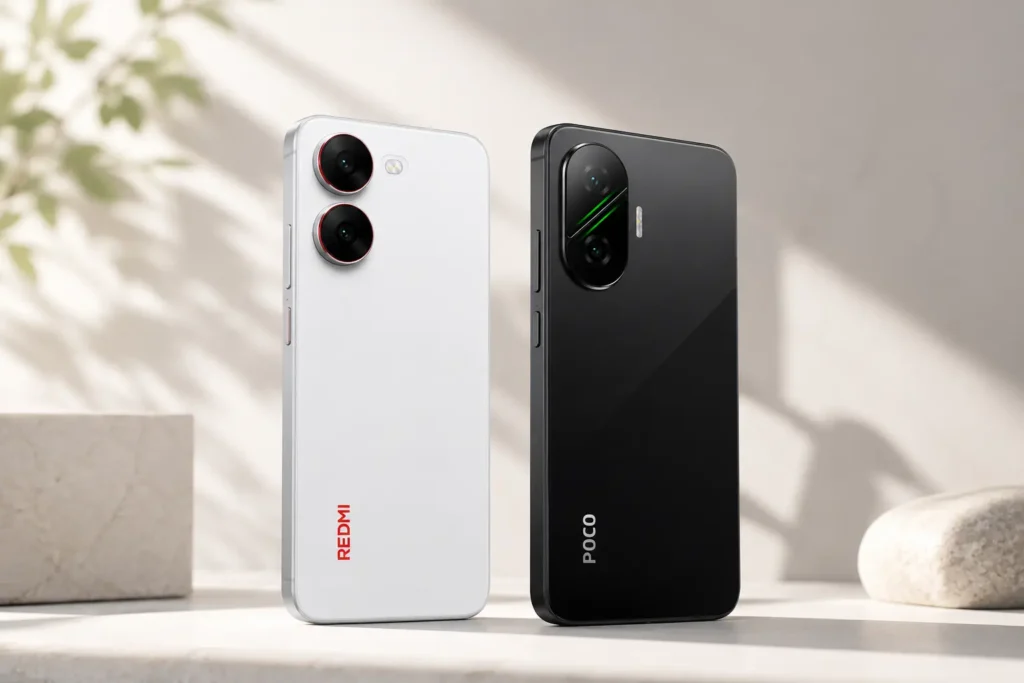
If you are shopping for a mid-range phone in 2026, you’ve likely narrowed it down to two heavyweights: the newly released Redmi Turbo 5 and last year’s gaming champion, the POCO F7. On paper, these two phones look like twins separated at birth. They both pack massive 7,500mAh-class batteries, the same 50MP Sony camera, and ridiculous 1.5K 120Hz displays. So, why pick one over the other? We put them head-to-head to cut through the spec sheets and tell you which phone actually deserves your money. POCO F7 Series. Source: Xiaomi / POCO F7 Specs: New Features | Xiaomi® UK 1. Performance: MediaTek vs. Snapdragon This is the biggest difference between the two devices. Redmi Turbo 5: Powered by the new MediaTek Dimensity 8500-Ultra. It’s slightly faster in raw benchmark scores (scoring over 2.1 million on AnTuTu) and handles sustained gaming beautifully thanks to Xiaomi’s new 3D Ice-Loop cooling. POCO F7: Runs on the Snapdragon 8s Gen 4. While technically a year older, Qualcomm’s chip remains incredibly stable and is often preferred by developers for game optimization. The Verdict: If you want the absolute latest silicon and slightly better thermals, the Redmi wins. If you prefer the proven reliability of Snapdragon, the POCO is still a beast. 2. Size & Display: Big vs. Bigger Both phones feature stunning 1.5K AMOLED displays with 120Hz refresh rates, but they target different users. The Size Difference: The POCO F7 is massive, featuring a 6.83-inch display. It’s fantastic for media consumption but can be unwieldy for smaller hands. The Redmi Turbo 5 sits at a more comfortable 6.59 inches. Brightness: The Redmi edges out the POCO slightly here, offering a blinding 3500 nits peak brightness compared to the POCO’s 3200 nits. Outdoors, the Redmi is noticeably punchier. 3. Battery Life & Charging Both phones are absolute battery monsters, but there are regional quirks to be aware of. Capacity: The Redmi Turbo 5 packs a 7,540mAh battery globally. The POCO F7 offers a 7,550mAh battery in India, but the global model is capped at 6,500mAh. Charging Speeds: The Redmi charges slightly faster with a 100W HyperCharge brick included, whereas the POCO F7 maxes out at 90W. Both phones will easily get you through two full days of heavy use, but the Redmi tops up a few minutes faster. 4. Durability: A Minor Win for Redmi If you are accident-prone, the Redmi Turbo 5 takes a slight lead. It boasts IP66, IP68, IP69, and IP69K ratings, meaning it can withstand high-pressure, high-temperature water jets. The POCO F7 is highly durable with an IP68/IP69 rating, but the Redmi’s IP69K certification makes it just a bit tougher against extreme elements. The Spec Breakdown Feature Redmi Turbo 5 POCO F7 (India Model) Processor Dimensity 8500-Ultra Snapdragon 8s Gen 4 Display 6.59″ AMOLED (3500 nits) 6.83″ AMOLED (3200 nits) Battery 7,540mAh 7,550mAh Charging 100W Wired 90W Wired Main Camera 50MP Sony IMX882 50MP Sony IMX882 Weight 204g 222g Final Verdict: Which Should You Buy? Buy the Redmi Turbo 5 if: You want a more pocketable design, the absolute brightest screen, slightly faster charging, and the bragging rights of having the newest MediaTek chip. It feels like a more refined, rugged package. Buy the POCO F7 if: You want the biggest screen possible for gaming and media, and you strongly prefer Snapdragon processors. If you can find it on a heavy discount since it’s a year older, the POCO F7 offers unbeatable value. Frequently Asked Questions Which phone is better for gaming, the Redmi Turbo 5 or POCO F7? Both are elite gaming devices, but the Redmi Turbo 5 edges out a win for prolonged gaming. Its newer MediaTek Dimensity 8500-Ultra chip and 3D Ice-Loop cooling system handle thermal management slightly better than the POCO F7, resulting in fewer frame drops over long sessions. Does the POCO F7 have a bigger battery than the Redmi Turbo 5? In India, the POCO F7 packs a 7,550mAh battery, making it slightly larger than the Redmi Turbo 5’s 7,540mAh battery. However, the Global version of the POCO F7 drops down to 6,500mAh. If battery capacity is your top priority globally, the Redmi Turbo 5 is the safer bet. What is the difference between the displays on these two phones? The POCO F7 has a larger 6.83-inch screen, making it a massive entertainment powerhouse. The Redmi Turbo 5 is slightly smaller at 6.59 inches, making it easier to hold with one hand. Additionally, the Redmi is slightly brighter, hitting a peak brightness of 3,500 nits compared to the POCO’s 3,200 nits. Are the Redmi Turbo 5 and POCO F7 waterproof? Yes. Both devices come with an IP68/IP69 rating, protecting them from dust and complete submersion in water. However, the Redmi Turbo 5 carries an additional IP69K certification, meaning it can also withstand high-pressure, high-temperature water jets. Which phone charges faster? The Redmi Turbo 5 charges faster. It comes with a 100W HyperCharge brick in the box, whereas the POCO F7 maxes out at 90W charging speeds. Also read: Xiaomi Redmi Turbo 5 Review: Specs, Pros, Cons, and Our Verdict

Redmi Turbo 5 vs POCO F7: We Compared Them So You Don’t Have To Read More »

Xiaomi Redmi Turbo 5 Review: Specs, Pros, Cons, and Our Verdict

Xiaomi Redmi Turbo 5

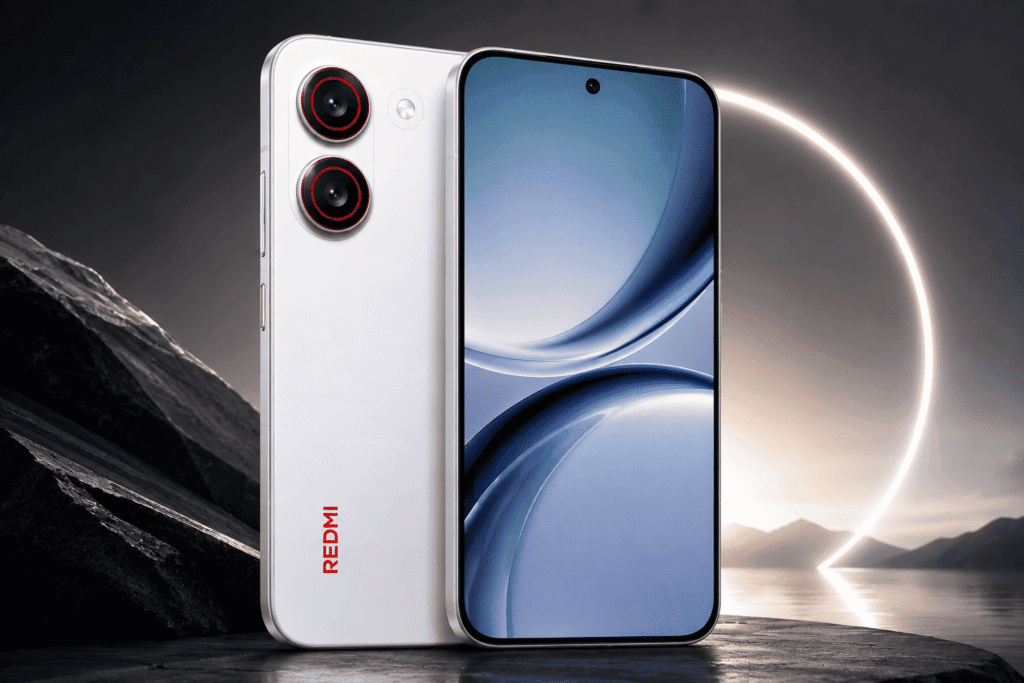
TL;DR: The Redmi Turbo 5 is a mid-range powerhouse built strictly for speed and endurance. With a flagship-tier MediaTek Dimensity 8500-Ultra chip and a massive 7,540mAh battery, it’s an absolute steal for mobile gamers and power users starting at ₹35,999. However, if you are looking for a versatile camera system, you might want to look elsewhere. Xiaomi Redmi Turbo Series. Source: GSMArena.com Display & Design Xiaomi didn’t cut corners on the screen. The Turbo 5 features a 6.59-inch 1.5K AMOLED display with a 120Hz refresh rate. The real standout here is the 3,500 nits peak brightness. Using this phone outdoors in direct sunlight is completely effortless. It also features 3840Hz PWM dimming, which is a massive win for users who are sensitive to screen flicker during late-night scrolling. Build-wise, it feels premium. Despite housing a massive battery, it weighs a reasonable 204g and carries full IP68/IP69K certification, meaning it’s highly resistant to dust, water immersion, and even high-pressure water jets. Performance This is the main event. Powered by the MediaTek Dimensity 8500-Ultra (built on TSMC’s 4nm process) and paired with fast UFS 4.1 storage, this phone flies. Gaming: It handles heavy titles like BGMI and COD: Mobile at a stable 120fps. Cooling: Xiaomi’s 3D Ice-Loop cooling system does a solid job preventing thermal throttling, though you will notice some warmth around the camera module during extended gaming sessions. Software: It runs on Xiaomi HyperOS 3 (based on Android 16), which feels snappy and heavily optimized for multitasking. Battery Life The battery is a massive 7,540mAh Silicon-Carbon cell. For the average user, this is easily a two-day phone. Even better, it supports 100W HyperCharge, which takes that huge battery from 20% to 100% in roughly 51 minutes. It also supports 27W reverse wired charging, essentially turning your phone into a fast power bank for your other devices. Note: Some early users have reported slightly higher-than-expected standby drain, but software updates should iron this out. Cameras This is where the “mid-range” reality sets in. Main Sensor: The 50MP Sony IMX882 with OIS and a wide f/1.5 aperture is surprisingly capable. It pulls in a lot of light, making night shots very respectable. Ultrawide: The 8MP ultrawide lens is mostly just a filler. It gets the job done for social media but lacks detail. Video: It shoots up to 4K at 60fps on the rear, which is perfectly adequate for this price tier. Pros & Cons Pros Cons Exceptional Performance: Dimensity 8500-Ultra handles heavy gaming with zero lag. Average Secondary Camera: The 8MP ultrawide is uninspiring. Massive Battery: 7,540mAh easily lasts two days. Warmth Under Load: Gets slightly warm near the camera during intense gaming. Incredible Display: 3,500 nits peak brightness is flagship-tier. Standby Drain: Minor software optimization needed for idle battery drain. Durability: IP68/IP69K rating offers serious water and dust protection. No Headphone Jack: A minor annoyance for dedicated gamers. Our Verdict: Should You Buy It? If your primary focus is raw performance, gaming, and battery life, the Xiaomi Redmi Turbo 5 is currently the undisputed king of the sub-₹40,000 segment. It delivers a flagship-level processor and an untouchable battery in a durable package. However, if you are a heavy photography enthusiast who relies on zoom lenses or high-end ultrawide shots, this isn’t the phone for you. The Turbo 5 knows its audience, and for power users, it absolutely delivers.

Xiaomi Redmi Turbo 5 Review: Specs, Pros, Cons, and Our Verdict Read More »

10 Things Every Samsung Galaxy User Should Know About Google Play System Updates

Samsung Galaxy Updates

When a Samsung Galaxy user hears the word “update,” they usually think of a massive One UI upgrade that completely changes how their phone looks, or a monthly security patch from their carrier. But there is a third, quieter update happening on your phone that is just as important. Google Play System updates work entirely behind the scenes to keep your Android device secure, fast, and fully featured. If you’ve never paid attention to them, you aren’t alone. Here are 10 quick facts every Galaxy owner should know about how these silent updates work. The Core Facts You Need to Know They are completely separate from One UI. While Samsung is responsible for your phone’s visual interface, camera features, and major OS upgrades, Google Play System updates manage the core Android framework running underneath it all. They bypass carrier and manufacturer delays. Because these updates are pushed directly by Google to your device, you don’t have to wait for Samsung or your cellular provider (like Verizon or AT&T) to approve and distribute them. They deliver critical security patches instantly. If a major Android vulnerability is discovered in a core system module, Google can use this system to patch your phone almost immediately, rather than leaving you vulnerable until your next scheduled Samsung update. They quietly introduce new features. These updates aren’t just for fixing bugs. In 2026 alone, Google has used them to roll out location-sharing features like Find Hub, Wallet enhancements, and new cross-device connectivity tools without needing a full Android OS upgrade. They update your phone in “modules.” Instead of replacing the entire operating system, Google Play System updates target specific chunks of code (like media codecs, Wi-Fi connectivity protocols, or location services) without touching the rest of your phone. They are tiny. Unlike a massive 3GB Android OS download that requires you to stay on Wi-Fi, these modular updates are usually only a few megabytes in size. They download in seconds and won’t drain your data plan. You have to restart to apply them. Even though the download happens silently in the background, the new code will not take effect until you reboot your phone. This is why restarting your phone regularly is good practice! Your phone might be behind, even if One UI is current. Because they are on completely different update tracks, it is very common to have the absolute latest version of Samsung software but be running a Google Play System from three or four months ago. You can check for them manually. Don’t wait for your phone to do it automatically. On modern Samsung devices, go to Settings > Security and privacy > Updates > Google Play system update to force a check and grab the latest version. They sometimes get stuck. If you manually check and the screen spins forever, it’s a known Android glitch. Clearing the cache for the Google Play Store and Google Play Services in your app settings will usually force the update through. The Bottom Line You don’t need to obsess over checking for these updates every day, but getting into the habit of checking the Google Play System status once a month ensures your Galaxy device has the latest security tools and background features Google has to offer. Also read: How to Update Your Google Play System on Samsung Galaxy Phones (2026) Also read: How to Manually Force a Google Play System Update on Samsung Galaxy Phones

10 Things Every Samsung Galaxy User Should Know About Google Play System Updates Read More »

How to Manually Force a Google Play System Update on Samsung Galaxy Phones

Samsung Galaxy Updates

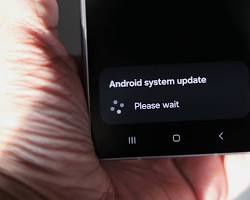
If your Samsung Galaxy is acting sluggish, apps are misbehaving, or Samsung Wallet features suddenly stop working, an outdated Google Play System might be the culprit. While these updates are designed to happen automatically in the background, they can sometimes get stuck. When that happens, your phone misses out on critical security patches and core Android features. Here is exactly how to manually force a Google Play System update on your Samsung Galaxy, along with the hidden steps you need to take if the standard update screen isn’t working. Google Play system update screen on Samsung phone Step 1: Force the Standard System Update Your first stop should be the built-in update trigger hidden in your phone’s settings. Open the Settings app. Scroll down and tap Security and privacy (or go to About phone > Software information on older models). Tap Updates. Tap Google Play system update. Your phone will immediately ping Google’s servers. If an update is waiting, tap Download and install, then hit Restart now when it finishes. Step 2: Force Updates for Hidden Google Components As of mid-2026, Samsung users have noticed that certain core Google system components—specifically Android System SafetyCore, Android System WebView, and Google Play Services—sometimes stop updating automatically and do not show up in the Play Store’s standard “Update All” list. If your Play System update seems stuck on an older month, you need to force-update these components directly from their hidden app listings. For SafetyCore and WebView: Go to Settings > Apps. Search for “Android System SafetyCore” and tap it. Scroll down and tap App details in store. Tap Update if the button appears. (If it says “Open” or “Remove updates,” you are already current). Repeat this exact process for “Android System WebView”. For Google Play Services: Go to Settings > Google > All services. Tap System services, then tap Google Play Services. Tap App details in store and press Update if available. Troubleshooting: What if the update is completely stuck? If you tap “Google Play system update” and the loading circle spins forever, or the download gets stuck halfway, the background updater has likely glitched. Here is how to force it back to life: Clear the Play Services Cache: Go to Settings > Apps > Google Play Services > Storage. Tap Clear cache (do not clear data). Restart your phone and try the update again. Check your storage and connection: Background system updates will silently pause if your phone’s storage is nearly full or if you are on an unstable cellular connection. Connect to Wi-Fi, clear out some large files, and try again. Leave it plugged in overnight: If all else fails, Google Play System updates are programmed to install when the device is idle, charging, and connected to Wi-Fi. Plug it in before bed, and the stuck update will often resolve itself by morning. Also read: 10 Things Every Samsung Galaxy User Should Know About Google Play System Updates Also read: How to Update Your Google Play System on Samsung Galaxy Phones (2026)

How to Manually Force a Google Play System Update on Samsung Galaxy Phones Read More »

How to Update Your Google Play System on Samsung Galaxy Phones (2026)

Google Play System Update

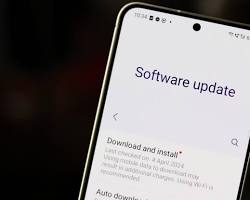
If you want your Samsung Galaxy phone to run smoothly and stay secure, you need to keep the Google Play System up to date. While full Android OS updates (like One UI upgrades) handle the major visual changes, Google Play System updates work behind the scenes. They deliver critical security patches, bug fixes, and core system improvements without requiring a massive software download. Here is the fastest way to check for and install the latest Google Play System update on your Samsung Galaxy device. The Standard Method (One UI) Google Play system update screen on Samsung phone For most modern Samsung Galaxy phones running recent versions of One UI, the update is located in your security settings. Open the Settings app on your phone. Scroll down and tap Security and privacy. Tap Updates. Tap Google Play system update. Your phone will automatically check Google’s servers for the latest version. If an update is available, tap Download and install. Once the download is complete, tap Restart now to apply the update. The Alternative Method If you don’t see the “Security and privacy” option or you are using an older version of Samsung’s software, you can access the update through your device information. Open Settings. Scroll to the very bottom and tap About phone. Tap Software information. Tap Google Play system update and follow the prompts to download any available updates.   Troubleshooting: What if it gets stuck? Occasionally, the update screen might fail to load or the “Checking for updates” circle will spin indefinitely. If this happens: Restart your phone: A simple reboot clears out background processes and usually fixes the glitch. Clear the cache: Go to Settings > Apps > Google Play Store > Storage and tap Clear cache. Try checking for the system update again. Pro Tip: Even if your phone says it is up to date, it is worth manually checking this menu every few weeks. Google often rolls out these patches in small, silent batches! Also read: How to Manually Force a Google Play System Update on Samsung Galaxy Phones Also read: 10 Things Every Samsung Galaxy User Should Know About Google Play System Updates

How to Update Your Google Play System on Samsung Galaxy Phones (2026) Read More »

OnePlus N6 Battery: Everything You Need to Know About the 8,000mAh Powerhouse

OnePlus N6

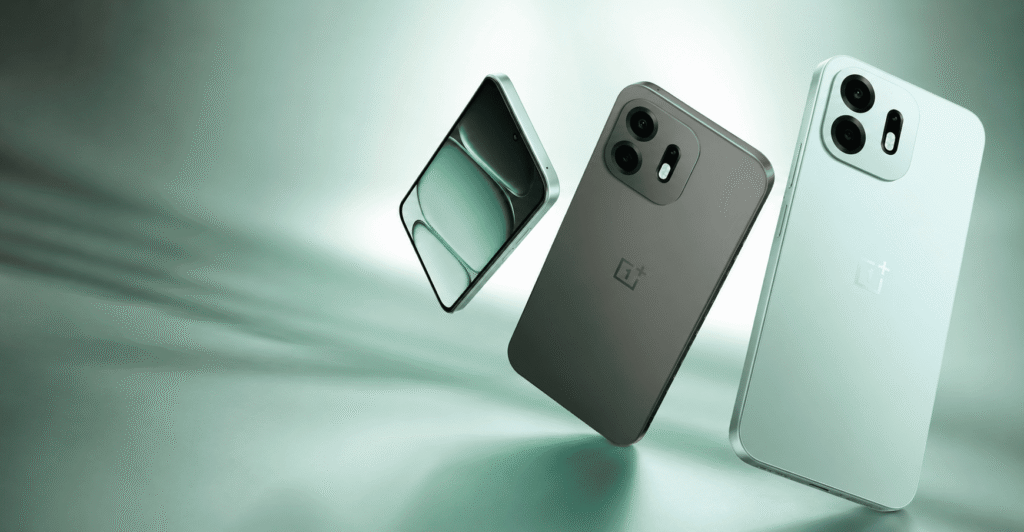
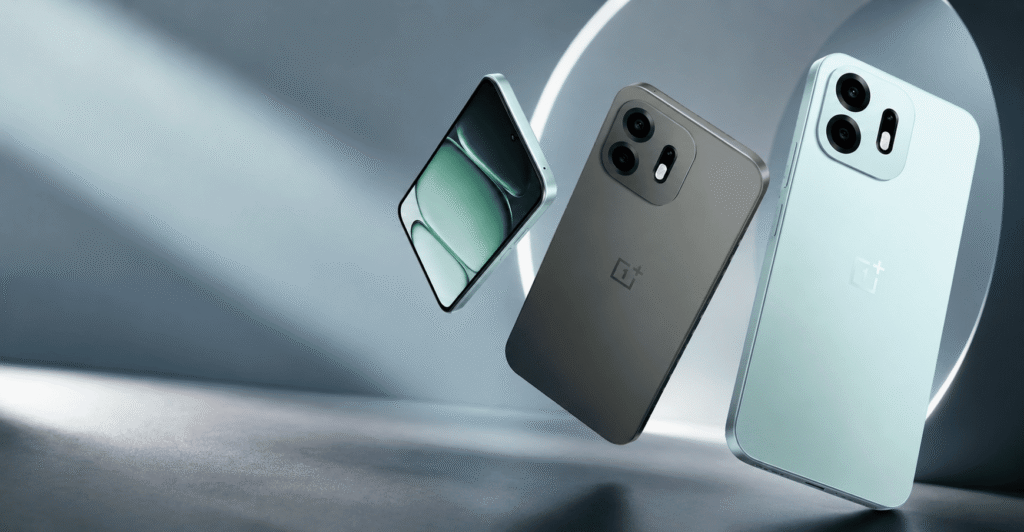
Smartphone battery life is usually measured in hours, but with the newly launched OnePlus N6, you can start measuring it in days. By packing an unprecedented 8,000mAh battery into its latest entry-level device, OnePlus hasn’t just pushed the envelope; they’ve completely rewritten the rules for the sub-₹25,000 segment in India. The OnePlus N6’s design hides its massive battery well. Source: OnePlus India If you are tired of carrying power banks, constantly hunting for wall outlets, or watching your battery percentage plummet during a gaming session, this phone is designed specifically for you. Here is the ultimate breakdown of everything you need to know about the OnePlus N6’s massive power cell. Battery at a Glance Before we dive into the real-world performance, here is a quick look at the raw specs that make the N6 tick: Feature Specification Capacity 8,000mAh (Silicon-Carbon tech) Wired Charging 45W SUPERVOOC Fast Charging Reverse Charging 5W Wired (Power bank mode) Cooling System 5,300mm² Vapour Chamber Claimed Lifespan Retains >80% health after 7 years How Long Does 8,000mAh Actually Last? In a world where 5,000mAh is the standard, 8,000mAh feels like a bottomless pit of energy. OnePlus claims this is a genuine 3-day battery for average users, and early benchmark tests back that up. In the rigorous PCMark battery test, the N6 scored an incredible 18 hours of continuous use. Here is what that massive capacity translates to in everyday numbers: Standby Time: Close to 38 days (over 900 hours). Continuous Gaming: Up to 14.8 hours of heavy titles. Video Playback: Nearly 25 hours of non-stop streaming. Navigation: Over 26 hours of continuous GPS routing. Thanks to the power-efficient MediaTek Dimensity 6360 Apex chipset and an overnight drain of just 2-3%, you can comfortably take a weekend trip without packing a charger. 45W Charging: Managing the Refill You cannot fill a pool with a garden hose quickly, and the same logic applies to an 8,000mAh battery. The N6 features 45W SUPERVOOC charging. While 45W isn’t the fastest speed on the market, it does an admirable job given the sheer size of the battery. You can expect to go from 1% to 50% in roughly 47 minutes. A full charge from dead to 100% will take about an hour and a half. The trade-off for slightly slower charging is that you will only need to plug it in every two to three days. The Hidden Power Features OnePlus didn’t just cram a huge battery into a plastic shell; they included several intelligent features to help you manage and share all that power. 1. Bypass Charging for Gamers This is a game-changer for mobile gamers. When you plug the N6 in while gaming, Bypass Charging routes power directly to the motherboard instead of the battery. This prevents the phone from overheating in your hands and stops the battery from degrading due to simultaneous charging and heavy discharging. 2. Turn Your Phone into a Power Bank With so much extra juice, the N6 supports 5W Reverse Wired Charging. By using a Type-C to Type-C cable, you can plug in your wireless earbuds, a smartwatch, or even a friend’s dying smartphone, effectively turning your device into a portable power bank. 3. A 7-Year Lifespan Guarantee A common worry with fast charging is battery degradation. OnePlus claims the N6 is rated for 1,600 complete charge cycles, which means the battery will retain at least 80% of its original health even after seven years of use. It also features a smart Night Charging Mode that learns your sleep routine to prevent overcharging while you rest. The Verdict The OnePlus N6 isn’t just about big numbers on a spec sheet. By utilizing Silicon-Carbon battery technology, OnePlus managed to fit 8,000mAh into a phone that is still relatively slim. If battery anxiety is your biggest smartphone complaint, the N6 is arguably the most compelling budget phone of the year. Also read: OnePlus N6 Battery Capacity Explained: Is 8,000mAh a Game Changer? Also read: How to Fix Battery Drain Issues on the OnePlus N6 Also read: OnePlus N6 Screen-On Time: Can an 8,000mAh Battery Hit 15 Hours?

OnePlus N6 Battery: Everything You Need to Know About the 8,000mAh Powerhouse Read More »

How to Fix Battery Drain Issues on the OnePlus N6

The OnePlus N6 is famous for its massive 8,000mAh battery, designed to last up to three days on a single charge. So, if your N6 is suddenly struggling to make it through the day, something is definitely wrong. Even with excellent hardware like the MediaTek Dimensity 6360 Apex chip and a 5,300mm² cooling chamber, software glitches and unoptimized settings can chew through your battery life. Here is a concise guide to fixing battery drain on your OnePlus N6. 1. Check for Accidental Reverse Charging The OnePlus N6 features 5W Reverse Wired Charging, which allows it to act as a power bank. If you frequently plug in USB-C accessories (like headphones or a flash drive) and leave them connected, your phone might be continuously attempting to charge them, causing a silent and massive battery drain. Always unplug accessories when not in active use. 2. Optimize the 120Hz Display The 6.8-inch display on the N6 supports a buttery-smooth 120Hz refresh rate, but keeping it locked at 120Hz constantly uses significantly more power. Go to Settings > Display & brightness > Screen refresh rate. Switch it to Auto-select (so it drops to 60Hz when you are just reading text) or lock it to 60Hz if you want to maximize your endurance. 3. Rein in Background Apps on OxygenOS 16 Rogue apps running in the background are the #1 cause of sudden battery drain on Android devices. Navigate to Settings > Battery > Battery usage. Look for any apps consuming an unusually high percentage of power (especially social media or gaming apps). Tap on the rogue app and select Force Stop, or restrict its background activity. 4. Enable “Sleep Standby Optimization” OnePlus includes intelligent software features to prevent your phone from draining while you sleep. Go to Settings > Battery > More settings. Turn on Sleep standby optimization. This allows the phone to reduce network usage and sync frequencies when it detects you are asleep, dropping overnight drain to just 1-2%. 5. Tone Down the Brightness The N6 display can peak at 1,200 nits, which is great for direct sunlight but terrible for your battery if left at max indoors. Ensure Auto-brightness is enabled in your Quick Settings panel so the phone isn’t blasting unnecessary light in dim rooms. Still draining fast? If you have tried all the steps above and your 8,000mAh battery is still depleting rapidly, check for a system update (Settings > About device). Occasionally, a bug in OxygenOS can cause battery drain, and OnePlus frequently releases patches to fix these issues. Also read: OnePlus N6 Screen-On Time: Can an 8,000mAh Battery Hit 15 Hours? Also read: OnePlus N6 Battery Capacity Explained: Is 8,000mAh a Game Changer? Also read: OnePlus N6 Battery: Everything You Need to Know About the 8,000mAh Powerhouse

How to Fix Battery Drain Issues on the OnePlus N6 Read More »

At Express Coverage 24, we bring you the latest in technology, gadgets, and digital trends all in one place. From in depth reviews and expert insights to breaking tech news, our goal is to keep you informed and ahead in the fast moving world of innovation. Whether you are a tech enthusiast or just curious about the next big thing, we deliver reliable, easy to read articles that matter.

Content Transparency

At Express Coverage 24, we value honesty, accuracy, and trust. Every article, review, and news update published on our platform is created with thorough research and a commitment to providing reliable information. We do not promote products or technologies without careful evaluation, and whenever opinions are shared, they are clearly marked as such. Our mission is to keep our readers informed with unbiased, fact-based content while being transparent about our sources, partnerships, and review processes.