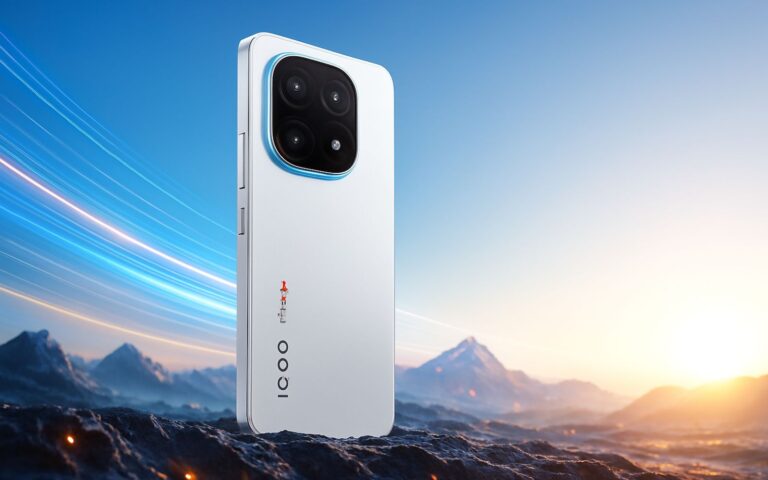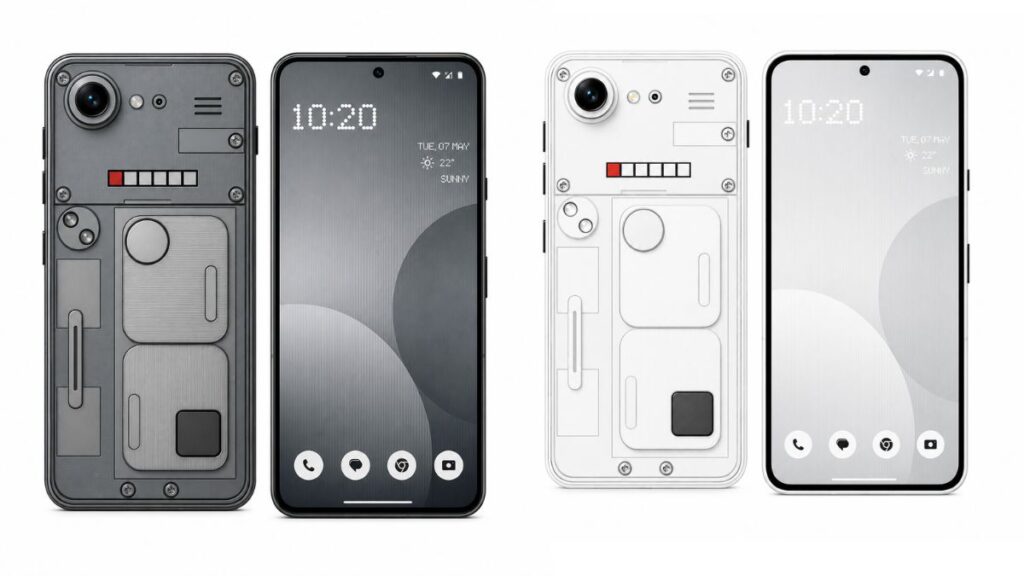
The Nothing Phone (4b) is officially here, and between its striking transparent design and the massive 5,400 mAh battery, it is a hardware beast for the price. But the real magic of this device lies in Nothing OS 4.1.
While the interface is praised for being clean and bloatware-free, it is actually packed with hidden tools, shortcuts, and customizations that most people never find. If you just unboxed your Phone (4b) or are waiting for yours to arrive, stop using it like a basic Android.
Here are 7 hidden features you need to enable right now to unlock the full potential of your new phone.
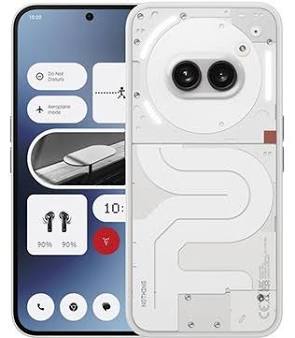
1. Instant ChatGPT from Anywhere
Nothing OS 4.1 brings incredibly deep AI integration, but it is tucked away where you might miss it. You do not need to switch apps to use ChatGPT anymore.
Whenever you take a screenshot or copy text, look for a small Eye Icon on the preview popup. Tapping this sends whatever is on your screen directly to ChatGPT. Need to translate an email, summarize a long article, or solve a math problem from a photo? It is just one tap away.
2. The Secret “Pop-Up View” Multitasking
Multitasking on a 6.77-inch screen should be easy, but the standard split-screen can feel clunky. Nothing OS hides a much better way to run multiple apps.
Open your recent apps menu (swipe up and hold), and tap the app icon at the top of the app card. You will see an option for Pop-Up View. This turns the app into a floating window that you can resize, move around, or temporarily minimize into an icon on the edge of your screen while you use another app.
3. Lock Apps Directly in the Task Switcher
Ever hand your phone to a friend to show them a photo, only for them to start swiping through your gallery or opening your messages?
You can lock an app to the screen so they cannot exit it. Go to the recent apps menu, tap the app icon at the top, and select Pin App. They can use that specific app, but they cannot go to your home screen or open anything else without your fingerprint or PIN. (Note: You may need to enable App Pinning in Settings > Security & Privacy first).
4. The Glyph Torch Shortcut
The Glyph interface on the back of the Phone (4b) isn’t just for notifications; it can be used as a super-bright, diffused flashlight that is much better for finding things in the dark than the harsh LED flash.
To activate it instantly, pull down your Quick Settings panel, long-press the Flashlight toggle, and select the Glyph lights. It provides a soft, wide-area illumination that is surprisingly useful.
5. Enable the “Smart App Drawer”
If you are tired of hunting through a massive alphabetical list of apps, Nothing OS 4.1 has an AI-powered solution.
Open your app drawer, tap the three-dot menu in the search bar, and turn on the Smart App Drawer. This feature automatically categorizes your apps into logical folders (like Social, Games, Productivity) and learns which apps you use most at certain times of the day, keeping them at the very top.
6. Maximize Battery with the “Extra Dark” Mode
The Phone (4b)’s AMOLED screen is incredibly bright, which is great for outdoors but terrible for your retinas at 2 AM. It also drains that 5,400 mAh battery faster.
Go into your Quick Settings panel, tap the edit pencil icon, and drag the Extra Dark toggle into your active tiles. This pushes the screen brightness below the normal minimum hardware limit, saving battery and saving your eyes when reading in bed.
7. The “Swipe Down for Notifications” Gesture
By default, you have to reach all the way to the top of that tall 6.77-inch screen to check your notifications, which is nearly impossible with one hand.
Change this immediately: Long-press on an empty space on your home screen > Home Settings > Gestures > enable “Swipe down for notifications.” Now, you can swipe down anywhere on the bottom half of your home screen to instantly pull down your notification shade.
Bonus Tip: If you want to make your home screen look even cleaner, you can hide app icons you rarely use. Just swipe left in your app drawer to access the hidden apps vault!