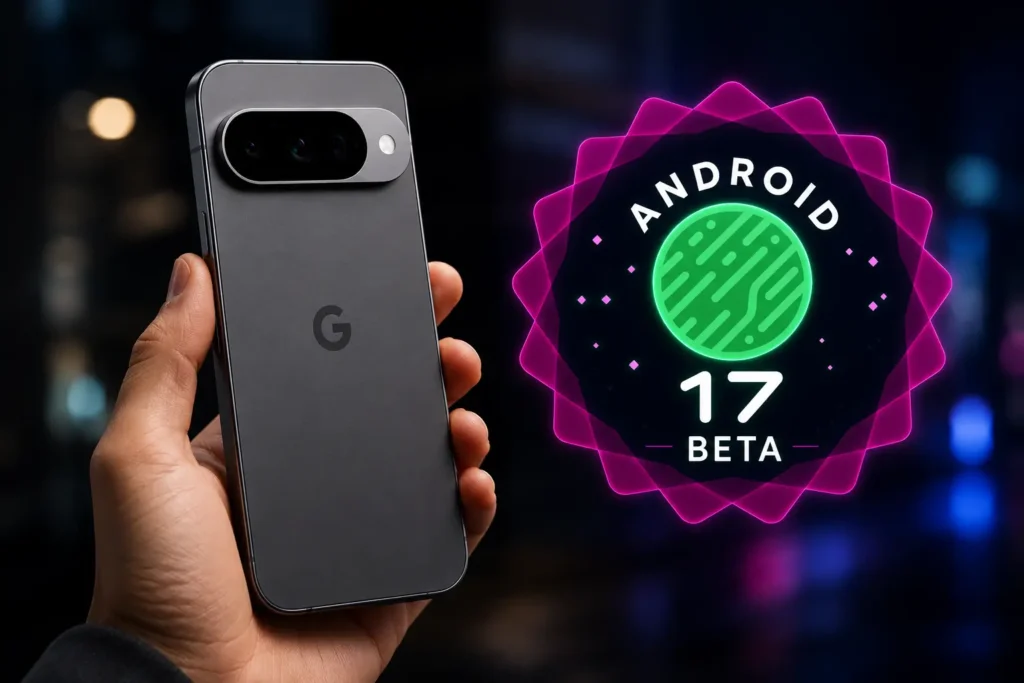
Google allows eligible Pixel users to test upcoming Android versions through its Beta Program. If you own a supported Pixel device, installing Android 17 Beta is a straightforward process that takes only a few minutes.
In this guide, we’ll walk you through the steps to install Android 17 Beta on your Google Pixel phone.
Before enrolling in the beta program, keep the following points in mind:
- Make sure your Pixel device is eligible for Android 17 Beta.
- Back up important photos, files, and data.
- Beta software may contain bugs, app compatibility issues, or unexpected battery drain.
- Ensure your phone has at least 50% battery and a stable internet connection.
Supported Pixel Devices
Android 17 Beta is available for select Pixel smartphones, including:
- Pixel 6 and Pixel 6 Pro
- Pixel 6a
- Pixel 7 and Pixel 7 Pro
- Pixel 7a
- Pixel 8 and Pixel 8 Pro
- Pixel 8a
- Pixel 9 Series
- Pixel Fold
- Pixel Tablet
Google may expand support as new beta builds are released.
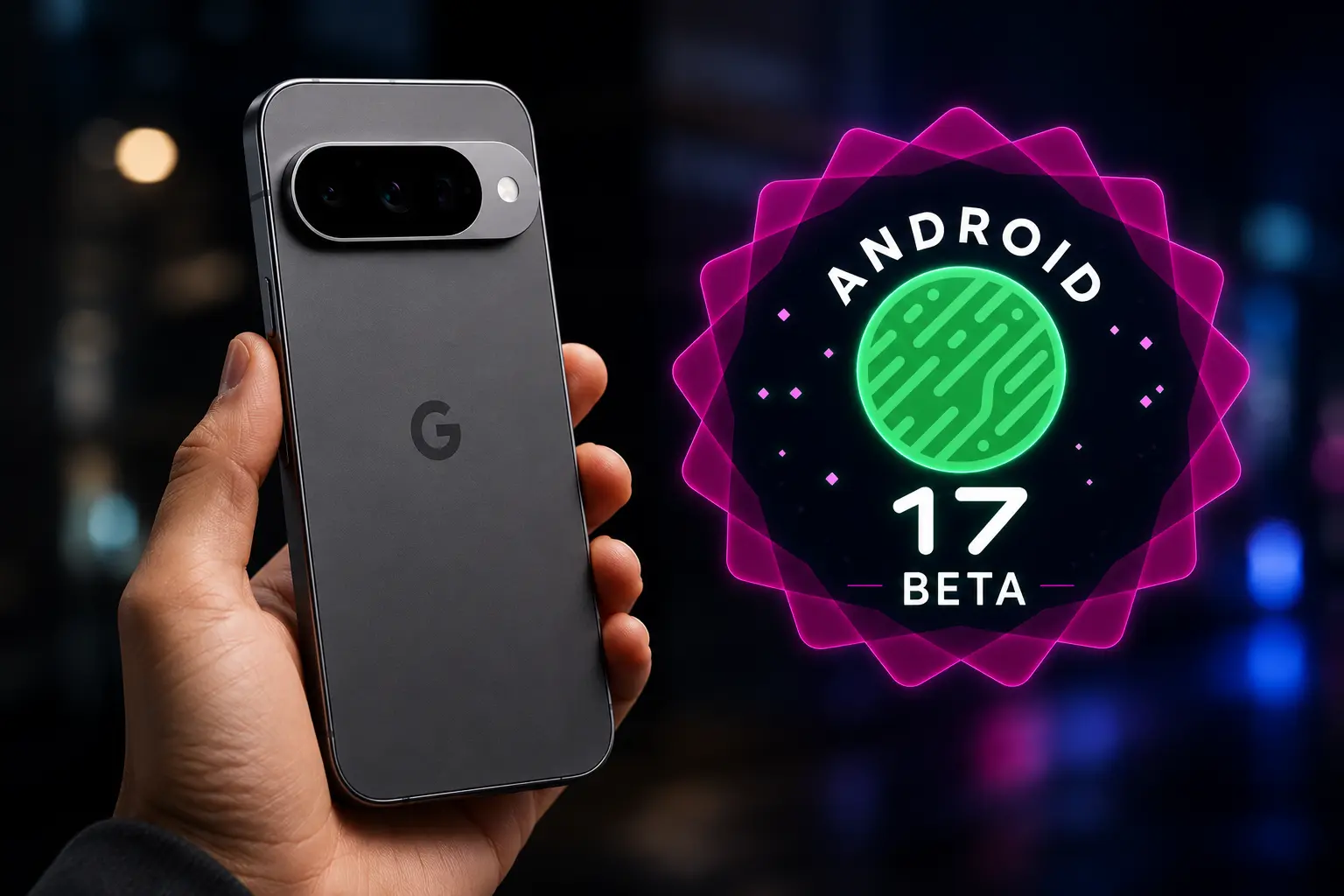
Step 1: Join the Android Beta Program
- Open your web browser and visit Google’s Android Beta Program website.
- Sign in with the Google account linked to your Pixel phone.
- Scroll down to find your eligible device.
- Click Opt In and accept the program terms.
Once enrolled, your device will be registered to receive Android 17 Beta updates.
Step 2: Check for the Update
After joining the beta program:
- Open Settings on your Pixel phone.
- Tap System.
- Select Software Update.
- Tap Check for Update.
The Android 17 Beta update should appear within a few minutes, although it can sometimes take longer.
Step 3: Download and Install Android 17 Beta
- Tap Download and Install.
- Wait for the update package to download.
- Restart your device when prompted.
The installation process may take several minutes depending on your device and internet speed.
How to Leave the Android Beta Program
If you decide to return to the stable Android version:
- Visit the Android Beta Program website.
- Find your enrolled Pixel device.
- Click Opt Out.
Keep in mind that leaving the beta program may require a factory reset, which can erase data from your phone. Always create a backup before opting out.
Final Thoughts
Installing Android 17 Beta on a Google Pixel phone is the easiest way to experience Google’s latest features before the public release. The process is simple and doesn’t require unlocking the bootloader or using advanced tools.
However, since beta software is still under development, it’s best suited for enthusiasts and users who don’t mind encountering occasional bugs. If your Pixel is your primary device, you may prefer waiting for the stable Android 17 update.